

How to manage content types and records in Data Manager
Data Manager is the Arc XP application for Structured Content. It has two sides: Schema Manager, where a content type is designed, and the record list, where editors create and edit the records of a content type. This guide walks through both. For the same operations over the API, see the developer guide and the endpoint reference.
Before you start
- Access to Data Manager is granted in Arc Admin’s Permissions app, under the Data Center permission group (see Getting access). Read lets you browse records, Write lets you create and edit them.
- Schema Manager is an admin surface. A user needs the Admin scope, globally or on any site, to see it.
- Every rule described here is enforced by the Draft API. Data Manager checks the same rules before saving.
Schema Manager: designing a content type
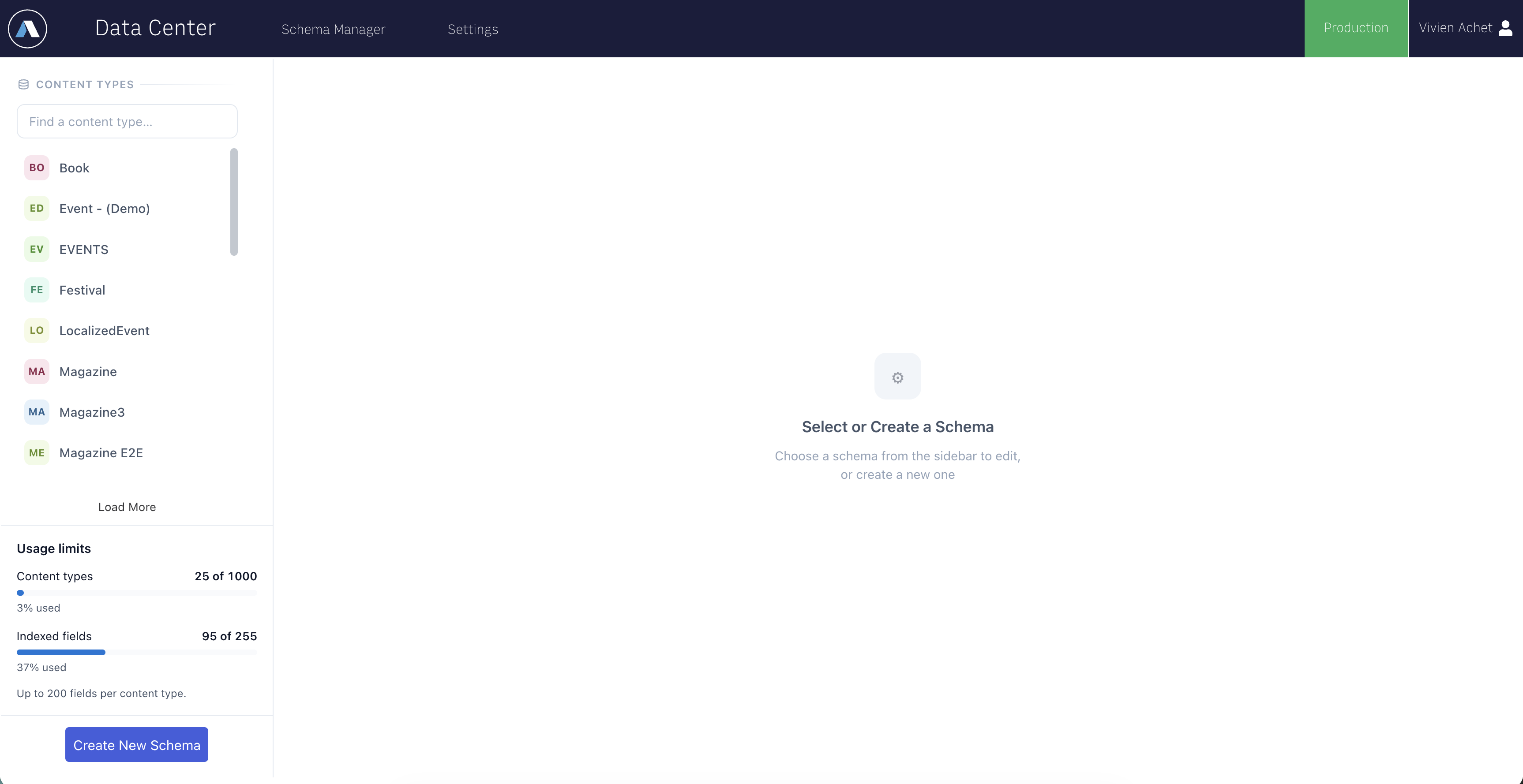
Open Schema Manager from the top navigation; its sidebar is headed Content Types and lists every content type in the organization — type to filter it — and shows the organization’s usage against its limits: how many content types exist out of the maximum, how many indexed fields are in use out of the purchased capacity, and the per-type ceiling of 200 fields.
Creating a content type
Create New Schema opens an empty definition. Give it a name — the permanent identifier, lowercase words separated by hyphens (event-venue), which cannot be changed or reused once saved — a display name, and an optional description. Then add fields.
Each field card holds:
| Setting | Notes |
|---|---|
| Key | The machine identifier your developers query by. Lowercase letters, numbers, hyphens, underscores; unique within the type. Locked after the first save. |
| Display Name | The label editors see. Change it any time. |
| Help text | Optional. Shown to editors beneath the input. |
| Type | One of the field types. Locked after the first save. |
| Required | Can be switched off later, never on — existing records would fail validation. |
| Search Indexes | Editorial (Data Manager search) and Retrieval (Content API queries), each with the index kinds valid for the type. An index can be added later but never removed once the field is saved. |
Type-specific settings appear when relevant: Enum Values (one per line) for enum; Array Item Type for array — Untyped for a free-form list, reference for a list of references, or enum for a multi-select whose options are its Enum Values; Target Kind and, for schema targets, Target Schema for reference fields.
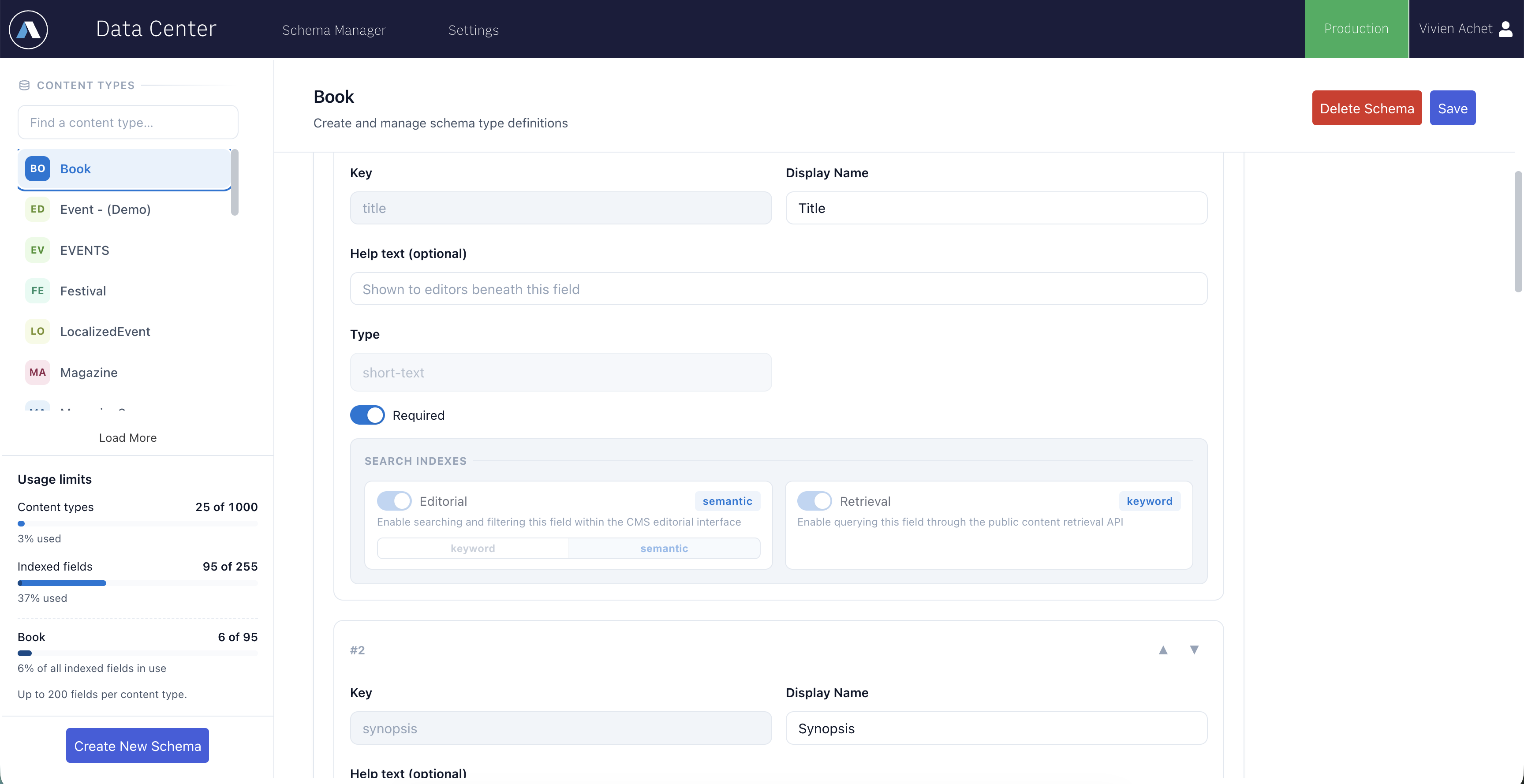
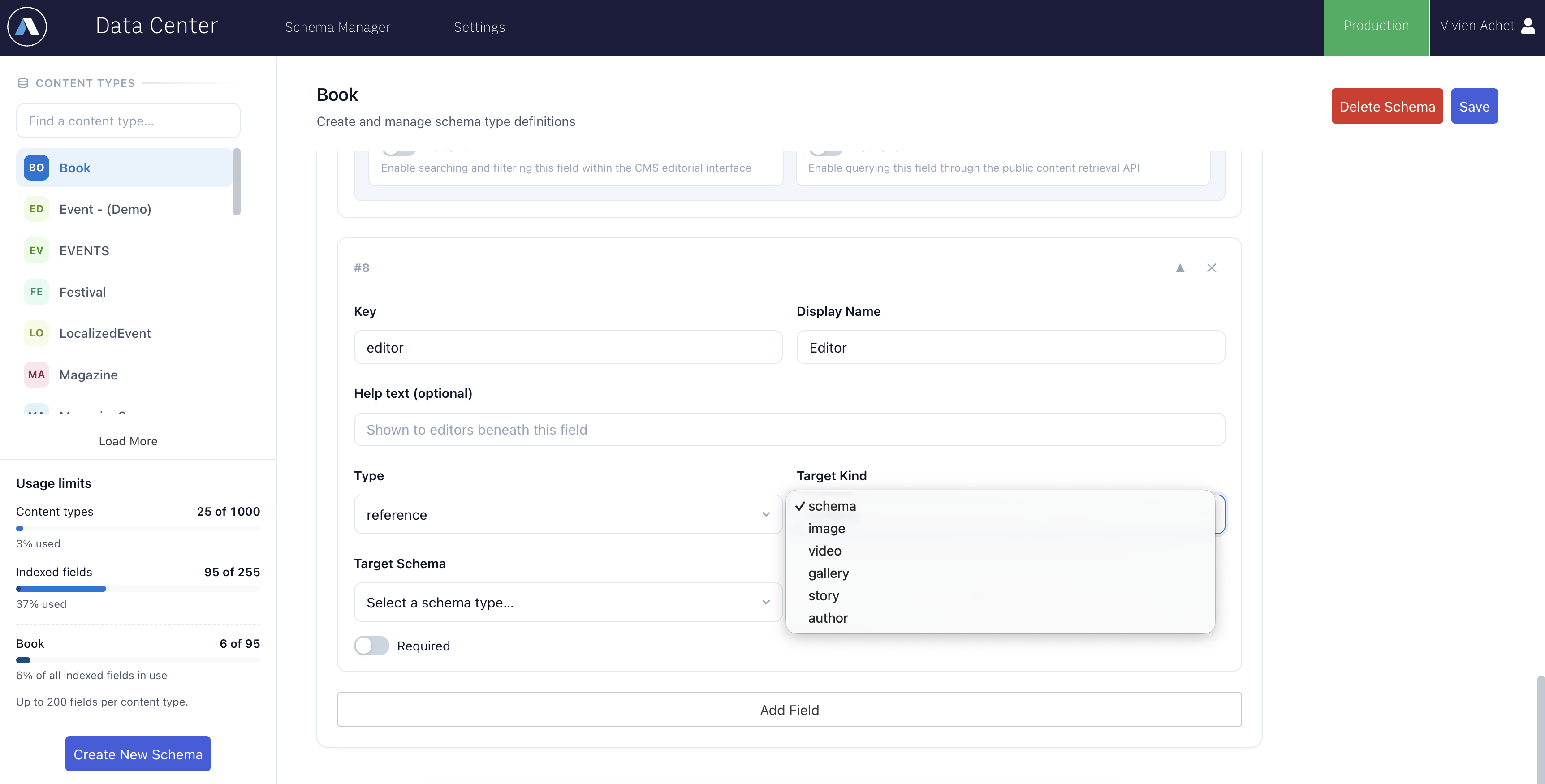
Reorder fields with the arrows on each card; the order is the order editors see in the form. Add Field appends another.
What you can change later
The builder greys out what is immutable and refuses to save what would break existing records — the same rules the API applies on PATCH:
- Always allowed: display name, description and help text; adding a field; adding an index kind (if capacity allows); relaxing Required from on to off.
- Never allowed after the first save: changing a field’s key or type; removing a field; removing an index; making a field required; changing a reference field’s Target Kind, Target Schema or an array’s item type.
If a saved field needs one of those changes, the path is a new content type with a different name — see Recovering from a schema design mistake.
Indexed-field capacity
Every field with an Editorial or Retrieval index counts once against the organization’s searchable-field capacity, shared by all content types. The sidebar shows the total and, while a type is open, that type’s share. Saving stops with an Index limit reached message when a new index would exceed it; since indexes on saved fields cannot be removed, capacity is only freed by deleting a content type. reference, rich-text, object and array fields (except multi-selects) take no index and use no capacity. Additional capacity is a paid add-on — see Limits and quotas.
Deleting a content type
Delete Schema is refused while the type still has records, and while another content type has a reference field pointing at it. Remove those first; records can be deleted from the record list, one at a time or several at once with Select. A deleted name is retired permanently.
Settings
Settings in the top navigation holds the per-type display and access settings:
- Display Name Field — which required
short-textfield is used as a record’s title in lists and pickers. - Preview URL — a template with
${id}and${schema}placeholders; when set, every record gets a Preview button. - Site Restrictions — which websites may circulate records of this type.
- List columns — the fields shown as columns in the record list. Each user can override this for their own browser with the list’s Columns button.
The Display section sets the Time zone dates are shown in, for your browser only.
Records
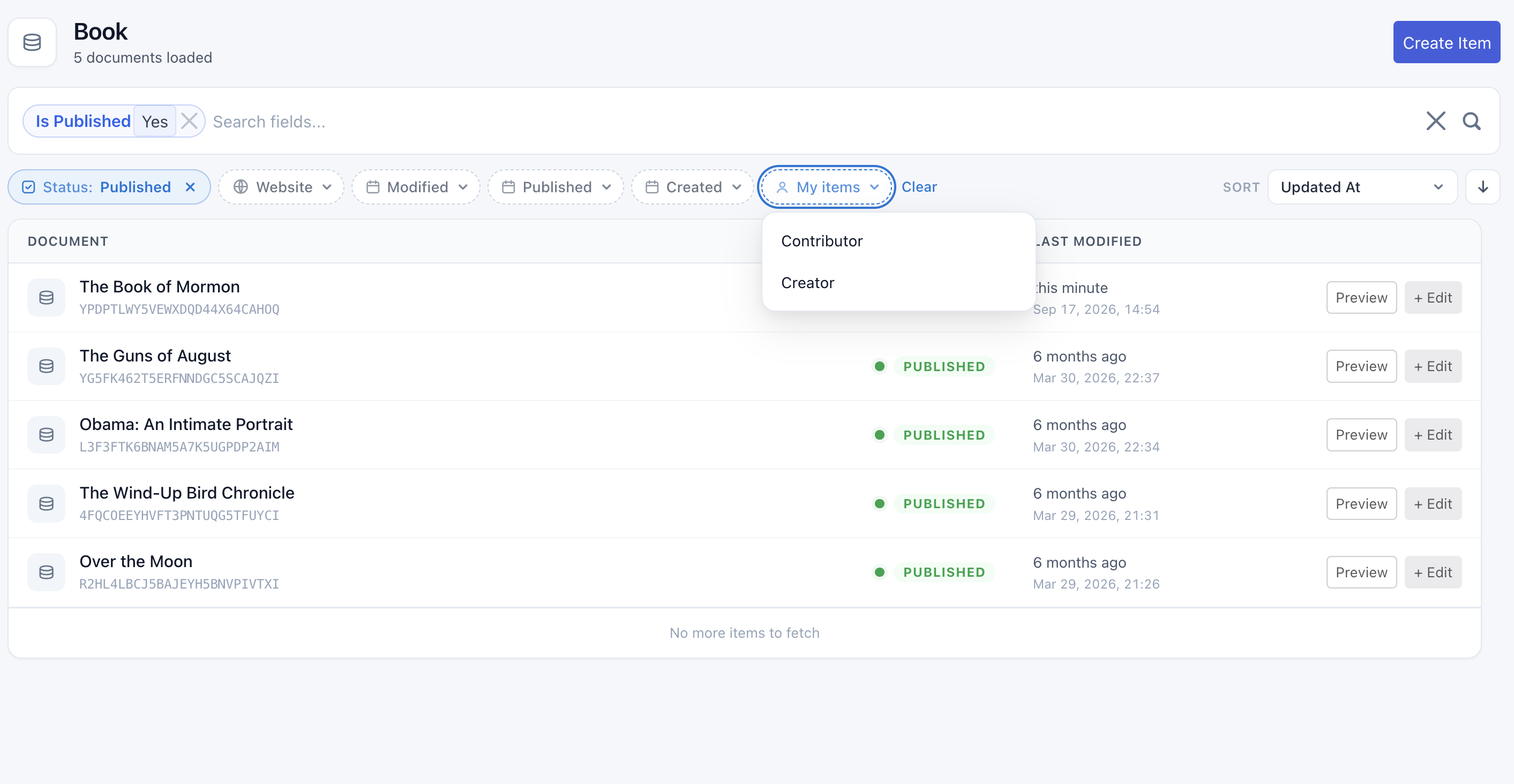
The record list opens on the content type chosen in the left column. The search box above the list searches the fields that carry an Editorial index; the filter pills narrow by Status (published or draft), Website, and when a record was Modified, Published or Created; My items shows what you created or contributed to. Sort sits at the right end of the same row and is disabled while a text search orders the results by relevance.
Create Item opens the form. The form is generated from the schema: each field renders the input for its type, required fields are marked, and help text appears beneath. Saving keeps a draft; Publish makes the record available to the Content API and to PageBuilder.
Reference fields
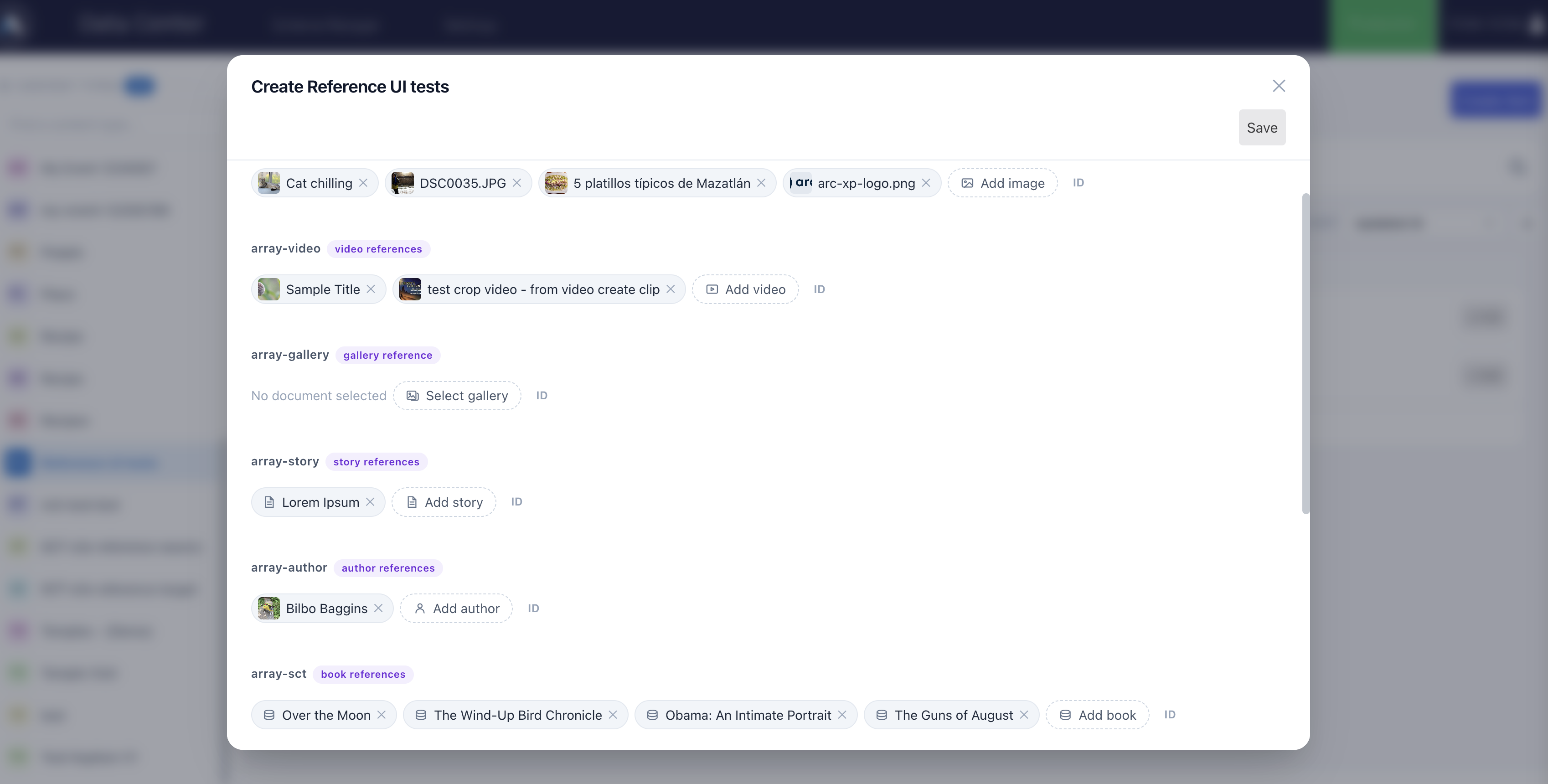
A reference field shows the referenced items as chips — the target’s title once it has loaded, with a type icon so an image and a video are told apart at a glance. Click a chip to open the target in its own application. The button beside the chips is named for the target — Add image, Add story, Add book for list fields, Select gallery for a single-value field — and opens a picker matched to the field’s Target Kind:
| Target Kind | Picker |
|---|---|
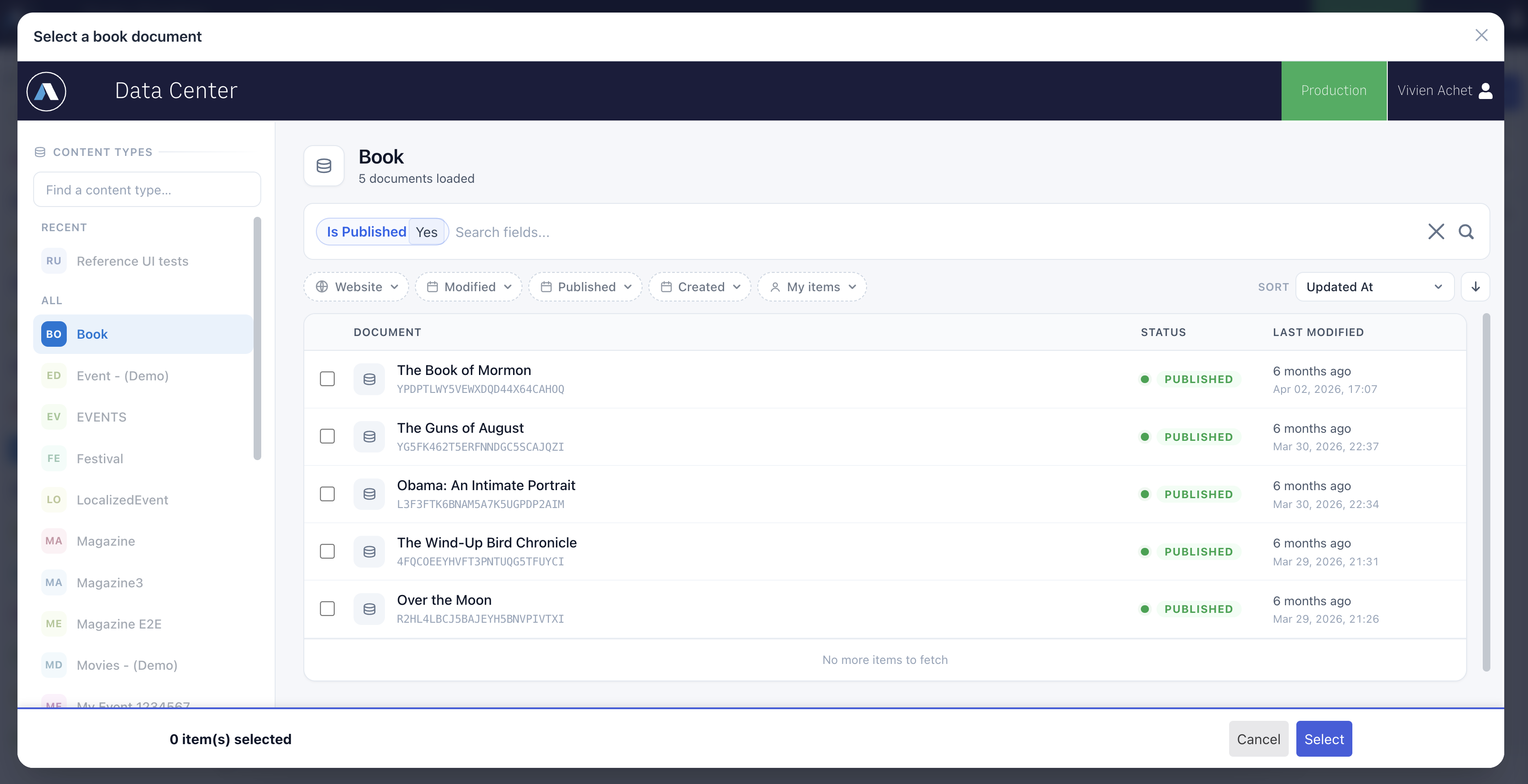
schema | Data Manager’s own record list, filtered to the target content type, in select mode |
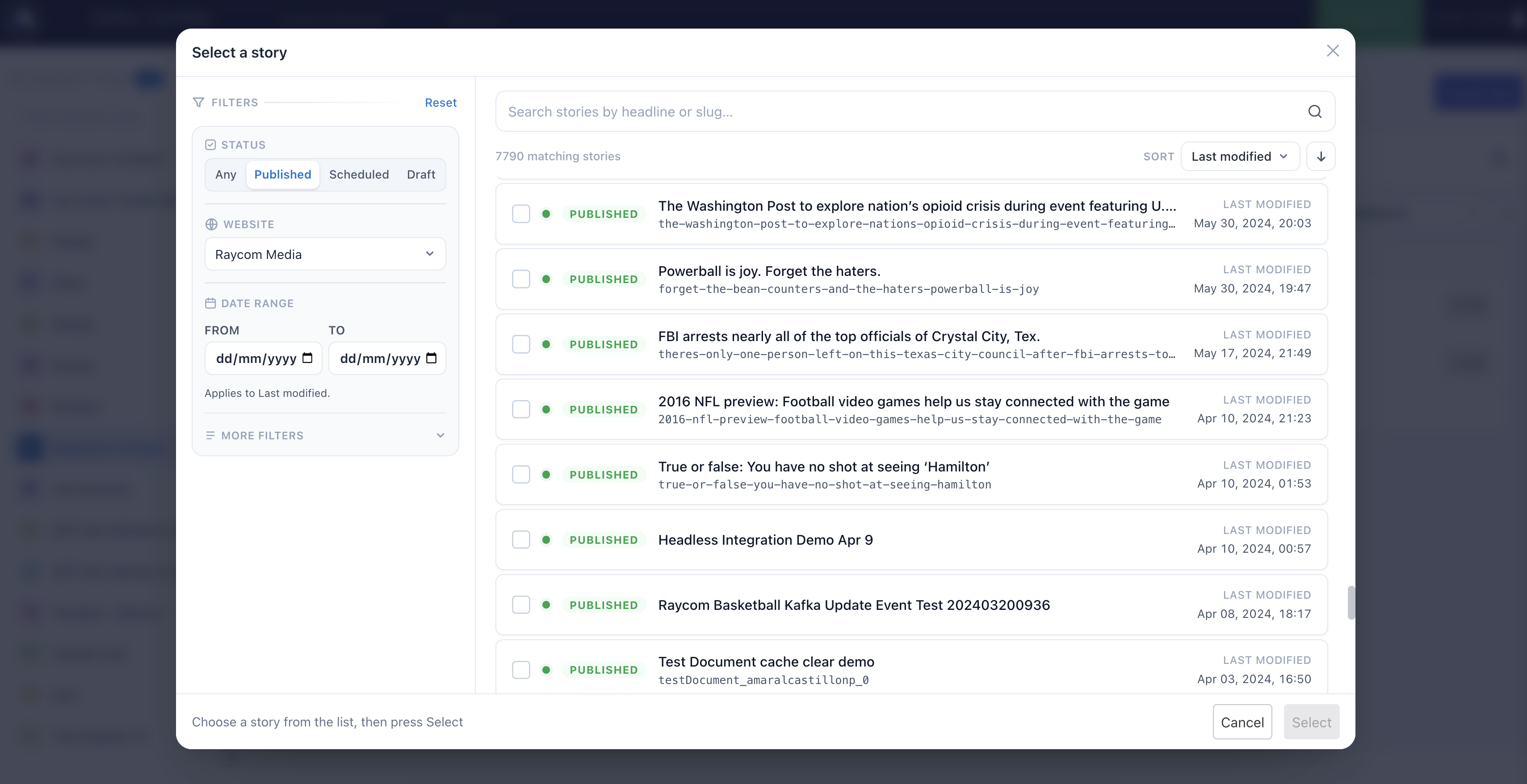
story | A story search with the same filters as Composer: website, publish state, dates, headline, author, source, subtype |
image, gallery | The Photo Center panel |
video | The Video Center panel |
author | A search by name or email |
Pick one or several (for list fields), then Select. An ID toggle beside the button accepts a document id typed by hand for every kind; an id is not verified on save — an unknown one is left unresolved when the record is published.
Worth telling editors: the referenced content is copied at publish time. The published record carries the target as it was when the record was last published. When a target changes, republish the records that point at it.
Rich-text fields
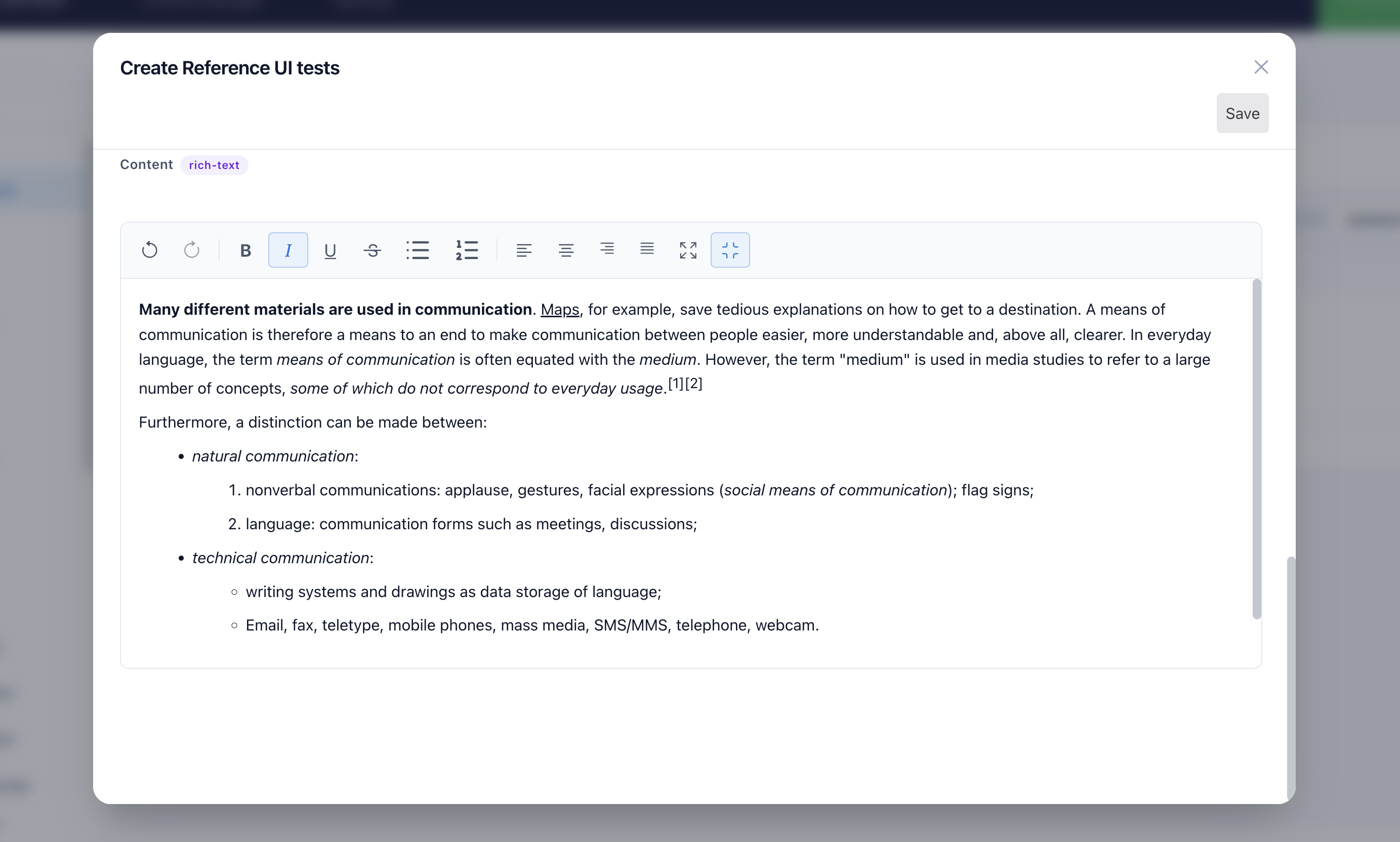
A rich-text field opens an editor with headings, bold, italic, underline and strikethrough, links, bulleted and numbered lists, and paragraph alignment, plus undo/redo and a maximize control for long text. Content is stored as HTML and cleaned on save against a fixed allowlist of tags and attributes (listed in Rich-text fields), so anything pasted from elsewhere that is not on the list — scripts, embedded objects, inline styling — is dropped. The limit is 0.5 MB per field.
The Usage tab
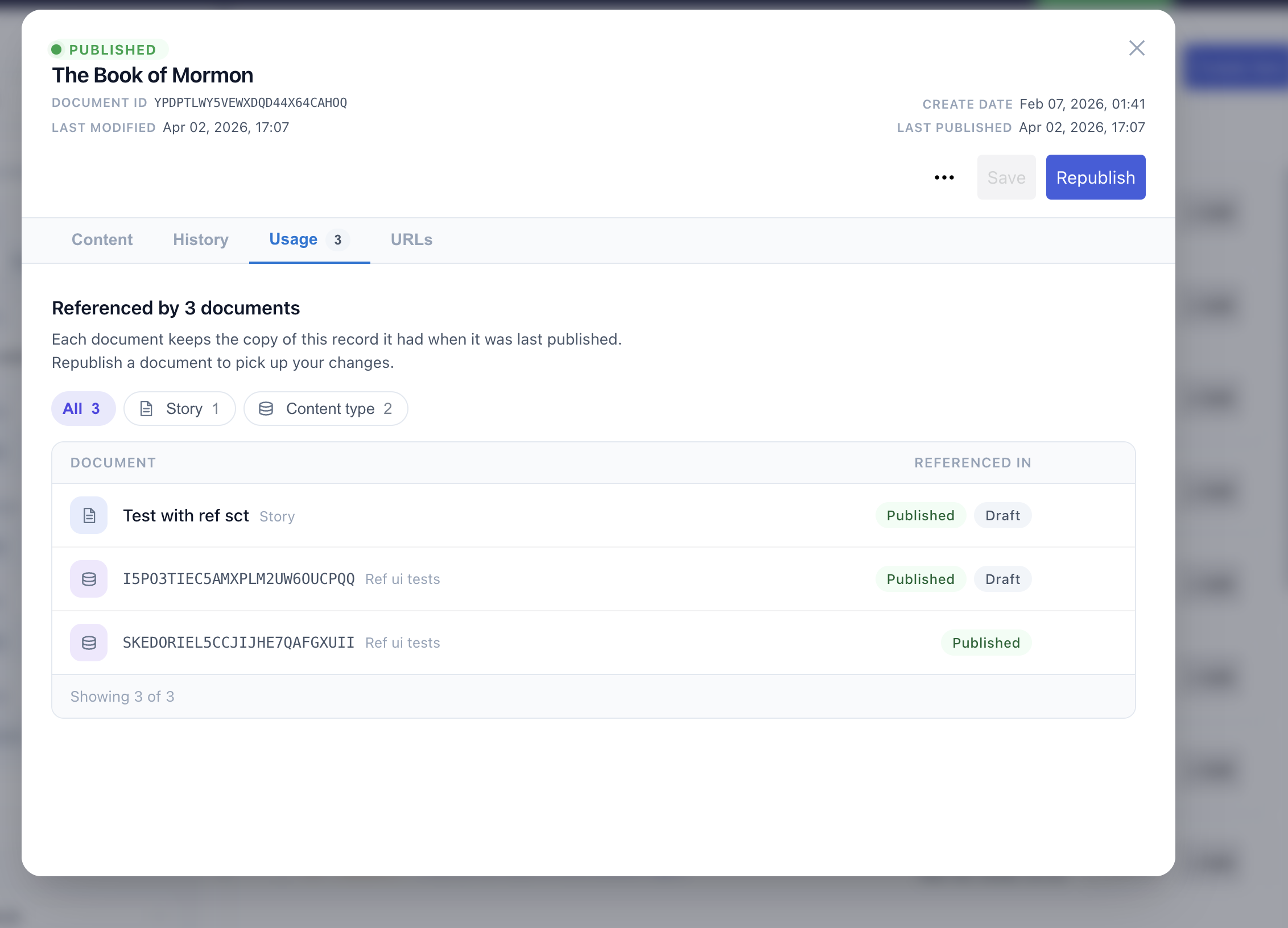
Open a record and switch to Usage. It lists every document that references this one — stories and records of any content type — with the state the reference appears in (Published, Draft or both) and when that document was last updated. Filter chips narrow by document type; a search box filters by title or id; each row opens the referencing document.
This is the tool for the copy-at-publish rule above: after changing a record that others reference, Usage tells you exactly which documents need republishing.
History and URLs
History lists the record’s revisions and lets you compare or restore one. URLs shows the URLs the record has been given per website and lets you regenerate them when the URL rules change.