

How to Set Up Google Reader Revenue Manager with Arc XP Subscriptions
Arc XP Subscriptions offers an out-of-the-box Google Reader Revenue Manager (RRM) integration — formerly branded Subscribe with Google (SwG) — that lets publishers provide seamless checkout and entitlement access to their customers. While Google manages the subscription, the publisher retains a direct relationship with the subscriber, including access to their email address.
For Google’s own product overview, see Google's Reader Revenue Manager documentation.
Integration overview
You have two primary integration options. The most basic is Retention, which communicates subscription entitlements to Google so that the reader has access to their subscription across Google surfaces and so that Google can highlight your content in Search and News results. Arc XP Subscriptions supports web purchases through SwG; Play store purchase support is also available (see the SDK section below).
Retention
- Enables readers to access their subscription across devices when signed into Google
- Highlights search results for quick access to your articles
- Google News will feature content from the reader’s subscriptions
Acquisition
- Enables readers to purchase and manage subscriptions directly through Google
You can see an example acquisition experience by clicking on any of the ‘articles’ on this Google-Managed Demo Site:
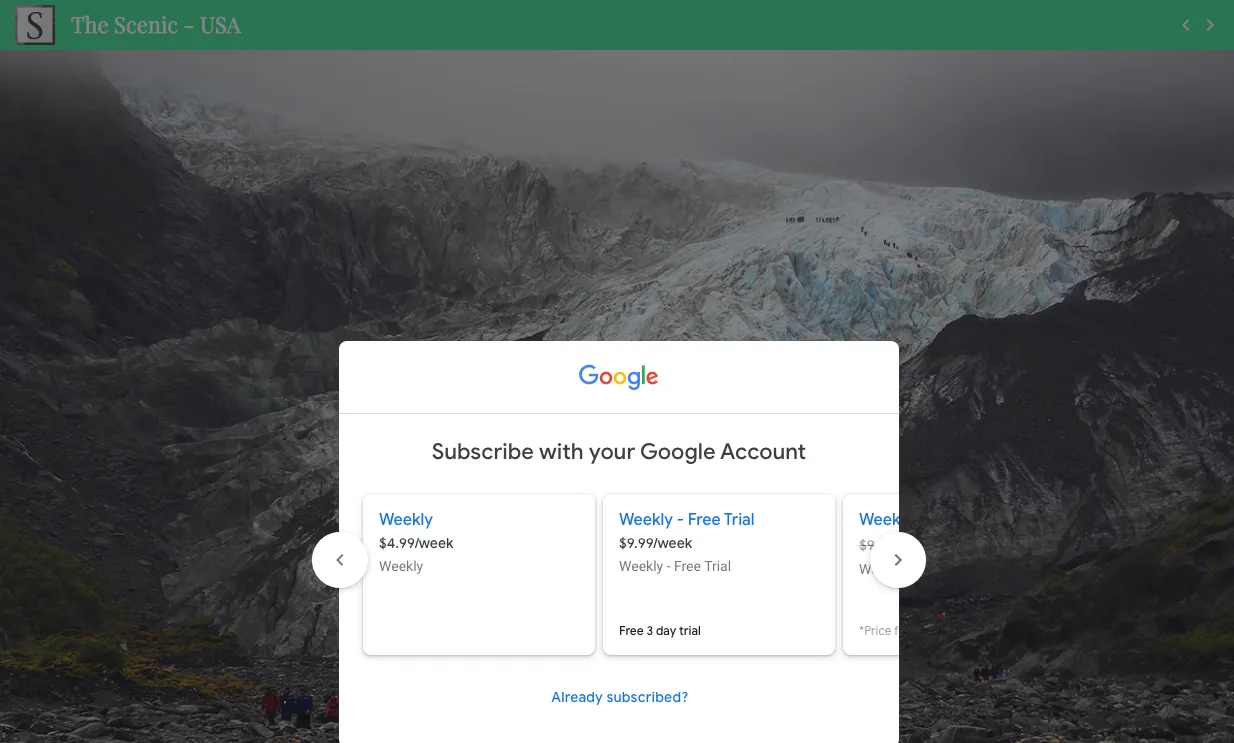
Integration steps at a glance
A full RRM rollout involves the following steps. Each one maps to a section below.
- Sign a Google Reader Revenue Manager contract with Google. Arc XP’s technical account management and product management teams can provide a high-level overview and next steps.
- Review the Google RRM documentation. Once enrolled, you’ll be granted access to Google’s RRM documentation hub.
- Implement Sign In With Google. Your site must offer Sign In With Google before going live with RRM. Arc Subscriptions’s JavaScript SDK supports this. All RRM benefits are tied to the user’s Google account.
- Set up your product and price catalog in Play Console. For each website where you want to offer RRM, configure exactly one product and one or more price rates.
- Configure your RRM payment provider in Arc Subscriptions. Arc Subscriptions provides a self-service admin to sync subscription updates between Google and Arc XP.
- Publish an Android app. RRM requires an app in the Play store, but it does not need to be offered for public consumption.
- Integrate the Arc SwG web SDK to enable Subscription Linking and SwG purchase flows on your site.
- Annotate article pages. Articles must include Schema.Org subscription JSON-LD so Google can index and recommend relevant content to subscribers.
- Update AMP. Required if you want to sell subscriptions or enable Subscription Linking on AMP pages.
- Validate your implementation with Google. Submit a screen recording of each touchpoint (web, AMP, mobile). Once approved, Google enables your RRM offering and you can go live.
Set up the subscription product in Play Console
Google’s Play Console help section includes information about adding a subscription, though some references are outdated so Arc is including up-to-date screenshots below.
Create the subscription
In the Play console, navigate to the Subscriptions section in the left sidebar.
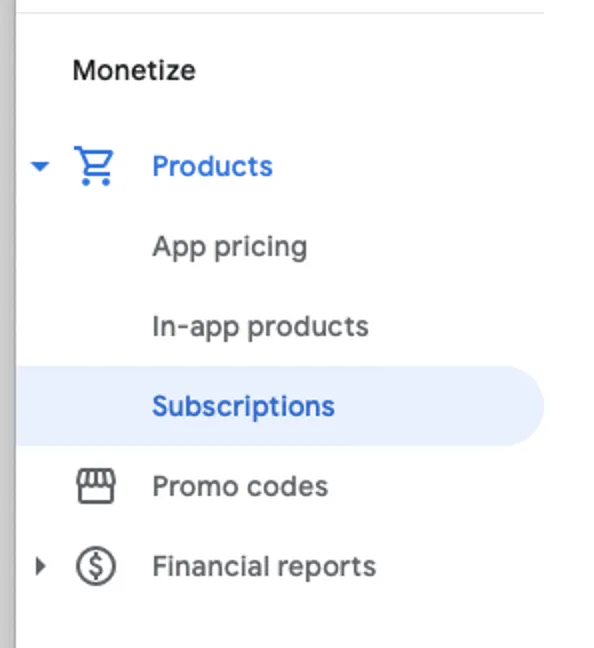
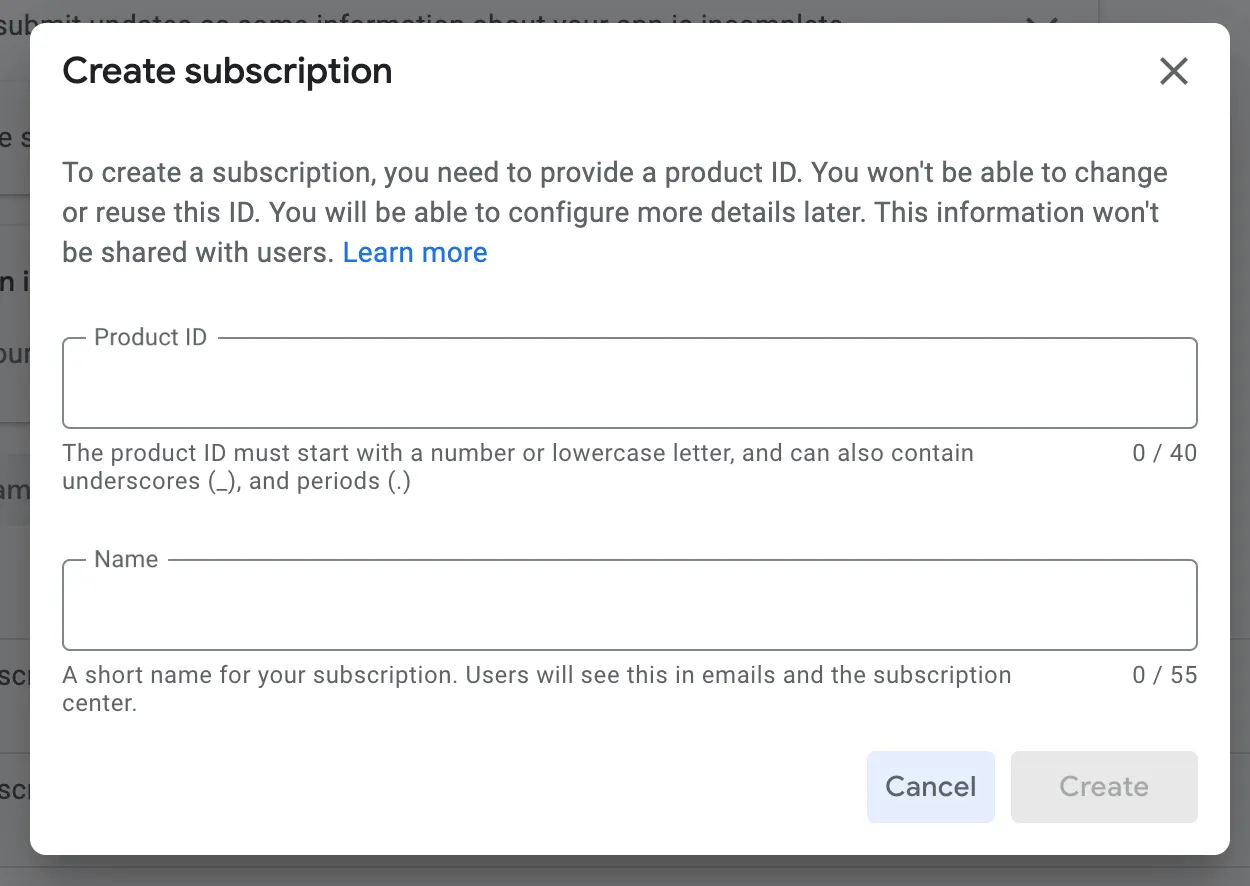
Click Create subscription.

Fill out the form.
Add a base plan and pricing
Add a base plan:
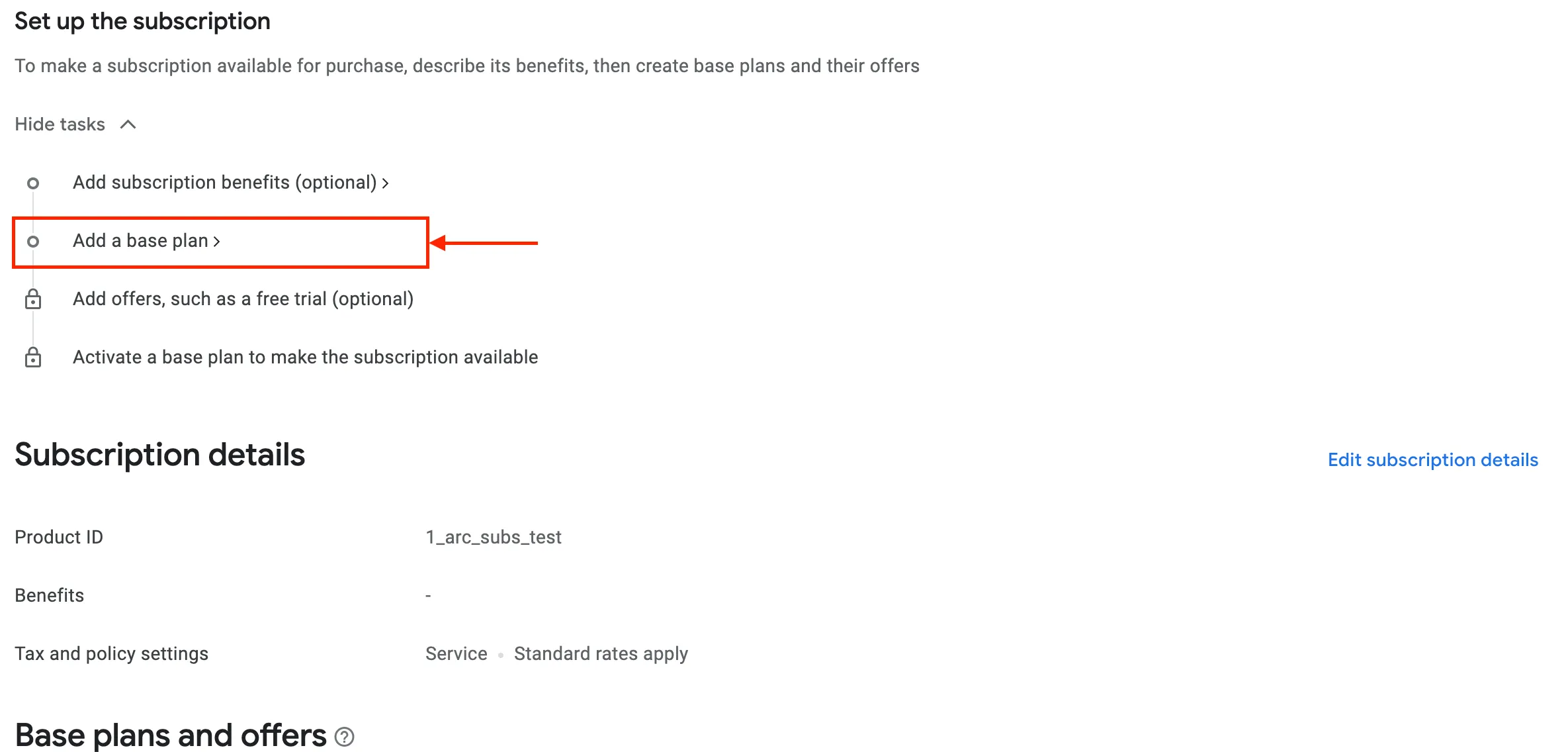
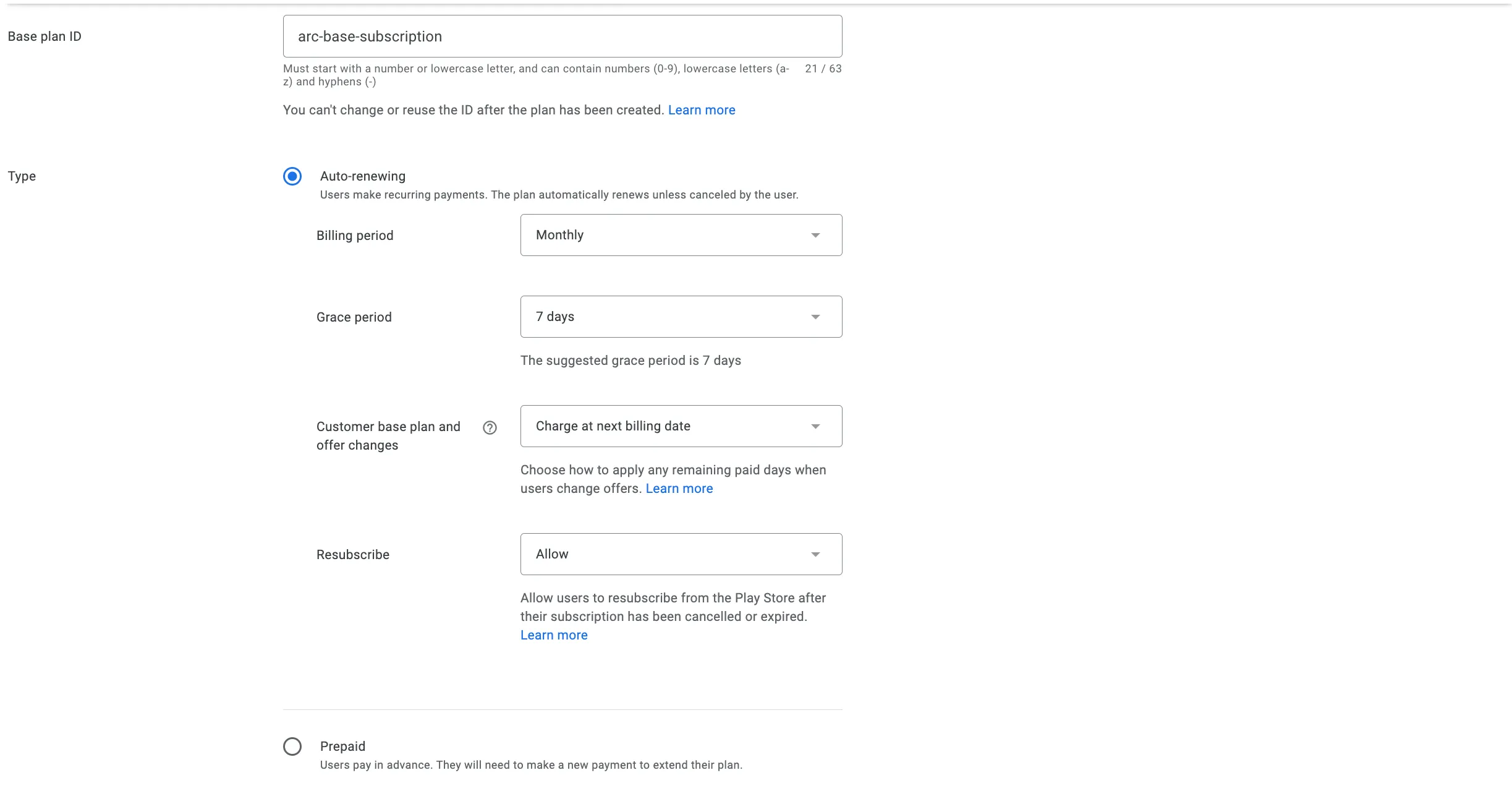
Set up your base plan. You have the option to select Auto-renewing or Prepaid.
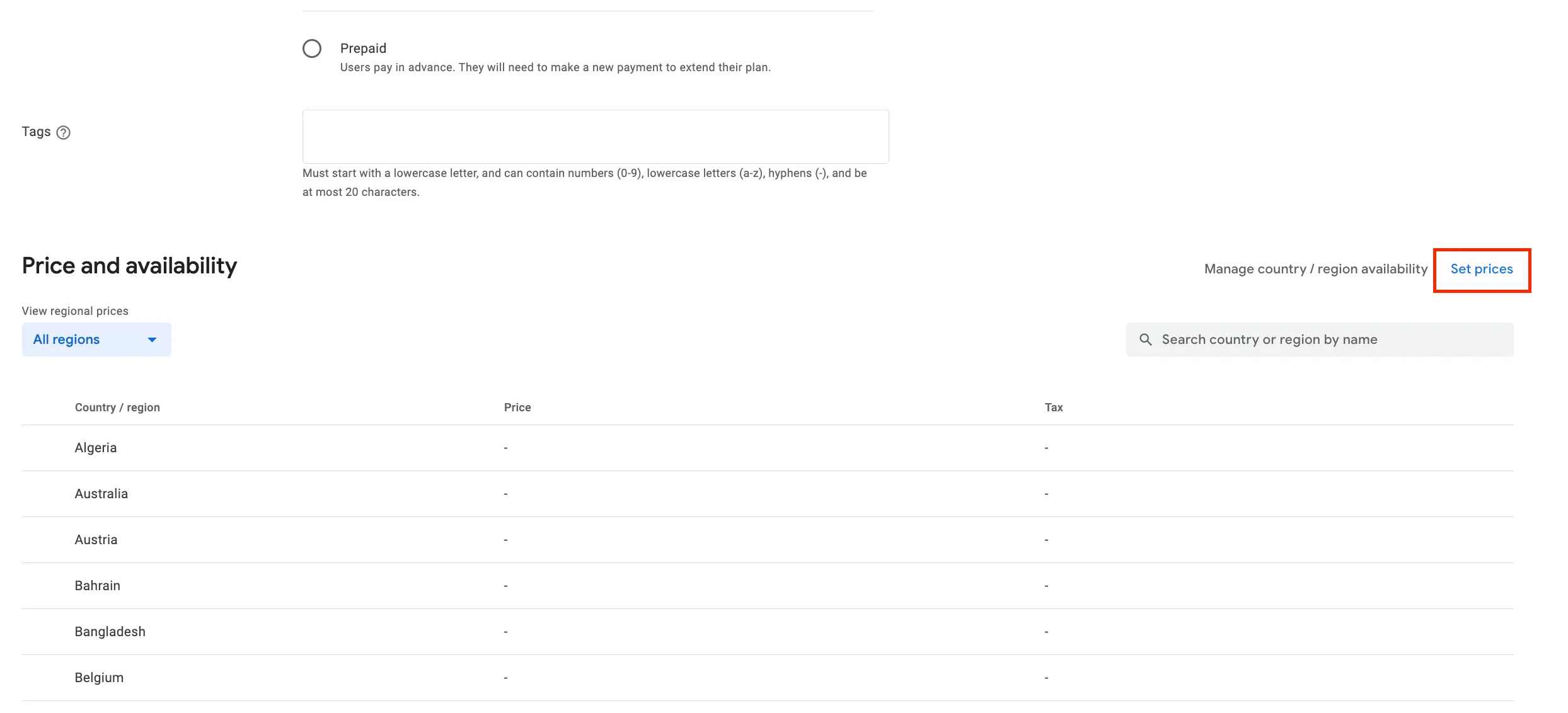
Set your subscription prices for the regions in which you’d like to make RRM available to your readers.
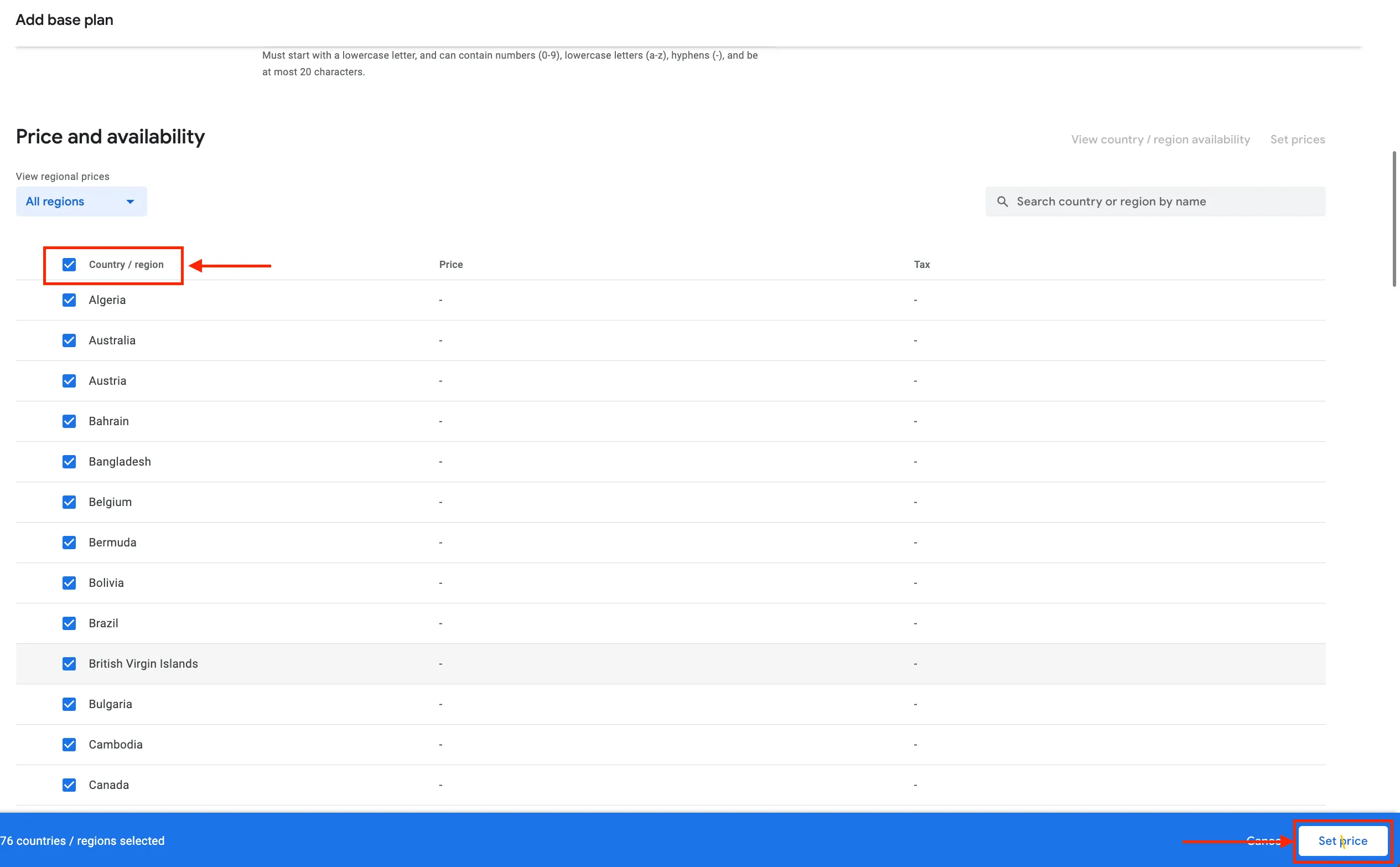
Select your region(s) and set your prices.
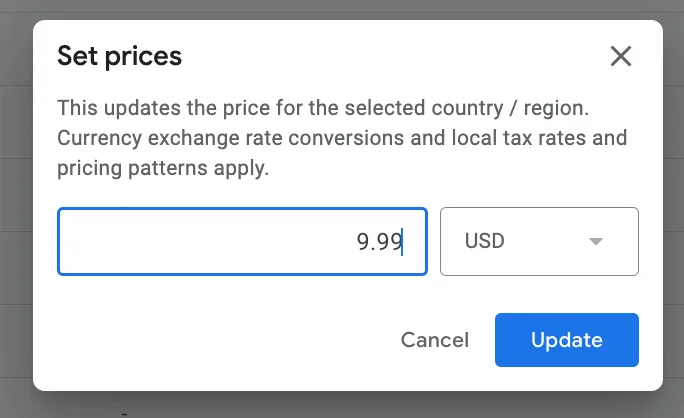
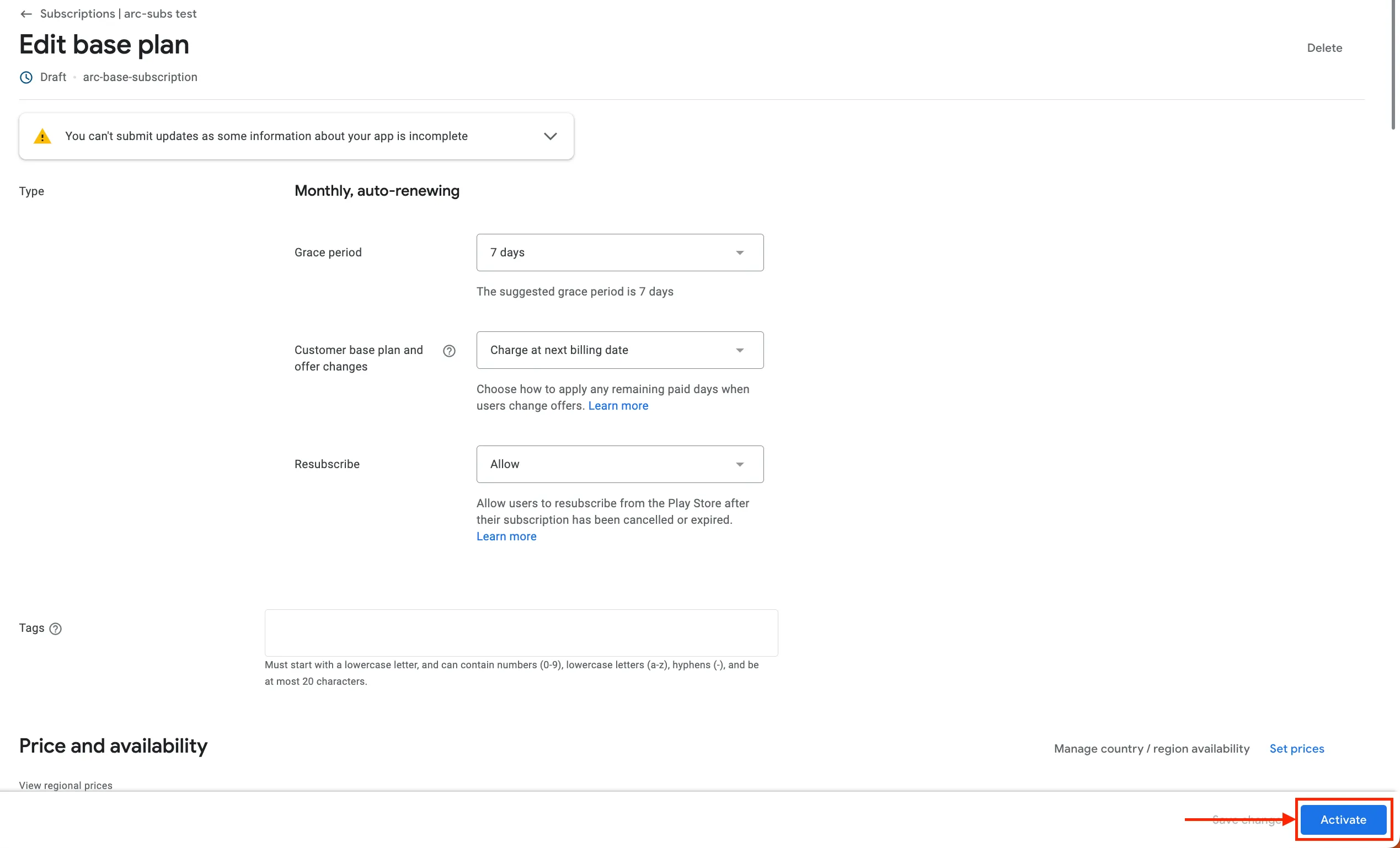
Once you’ve added prices to your regions, you can activate your base plan.
Set up the publication in Google Publisher Center
Once you have your products and prices set up in the Google Play Store, add your publication to Google’s Publisher Center.
Learn how to set up your Publisher Center account. After creating the publication, contact your Google rep to enable Google Reader Revenue Manager for your organization. If you don’t have a Google rep, contact Arc XP Customer Support to organize an introduction.
Verify site ownership
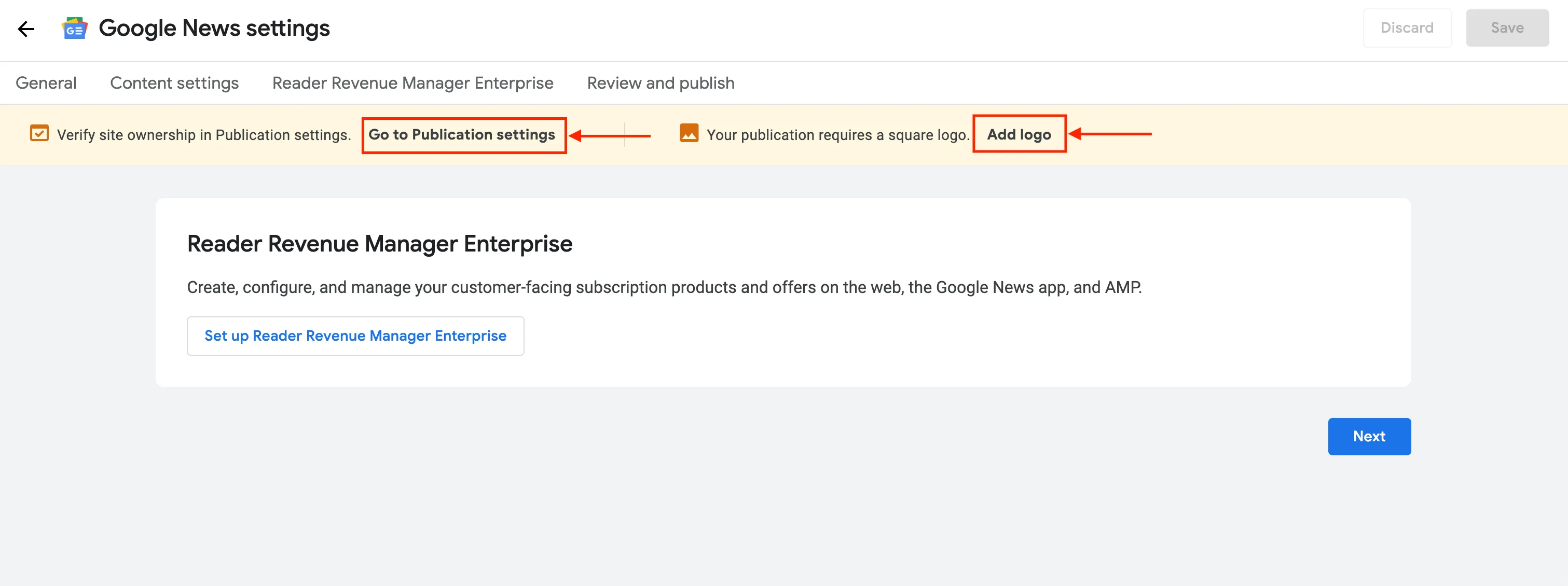
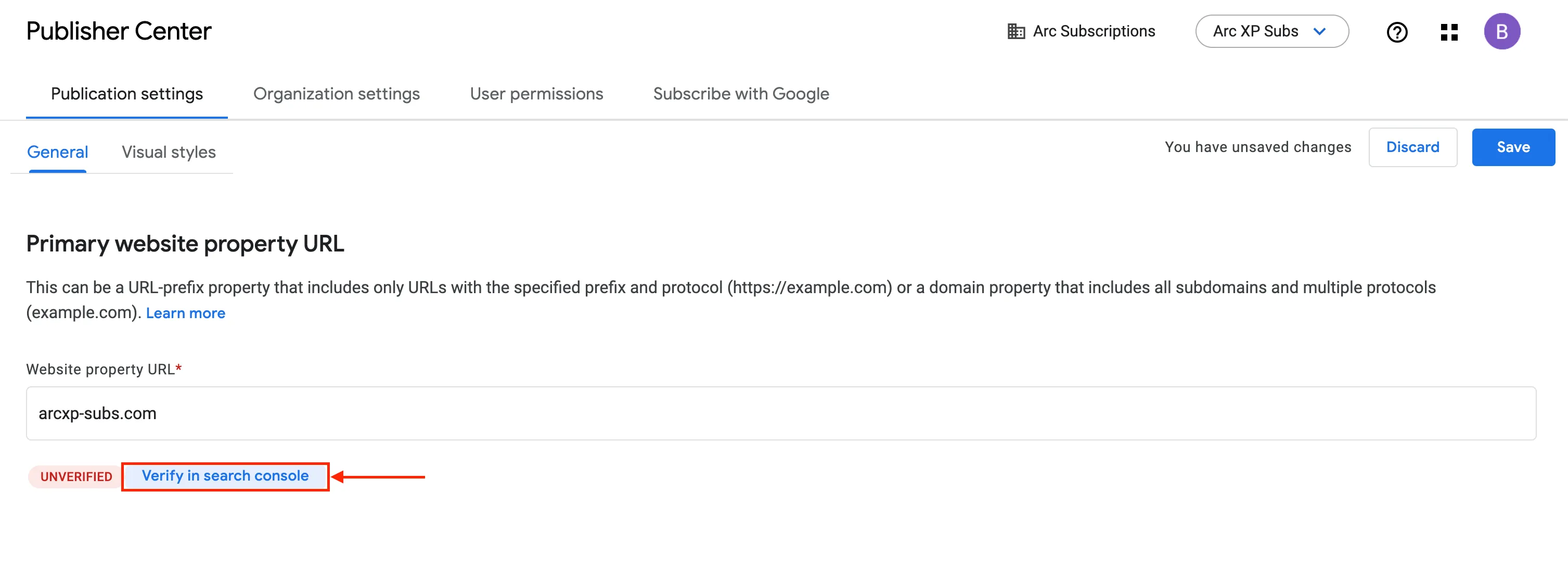
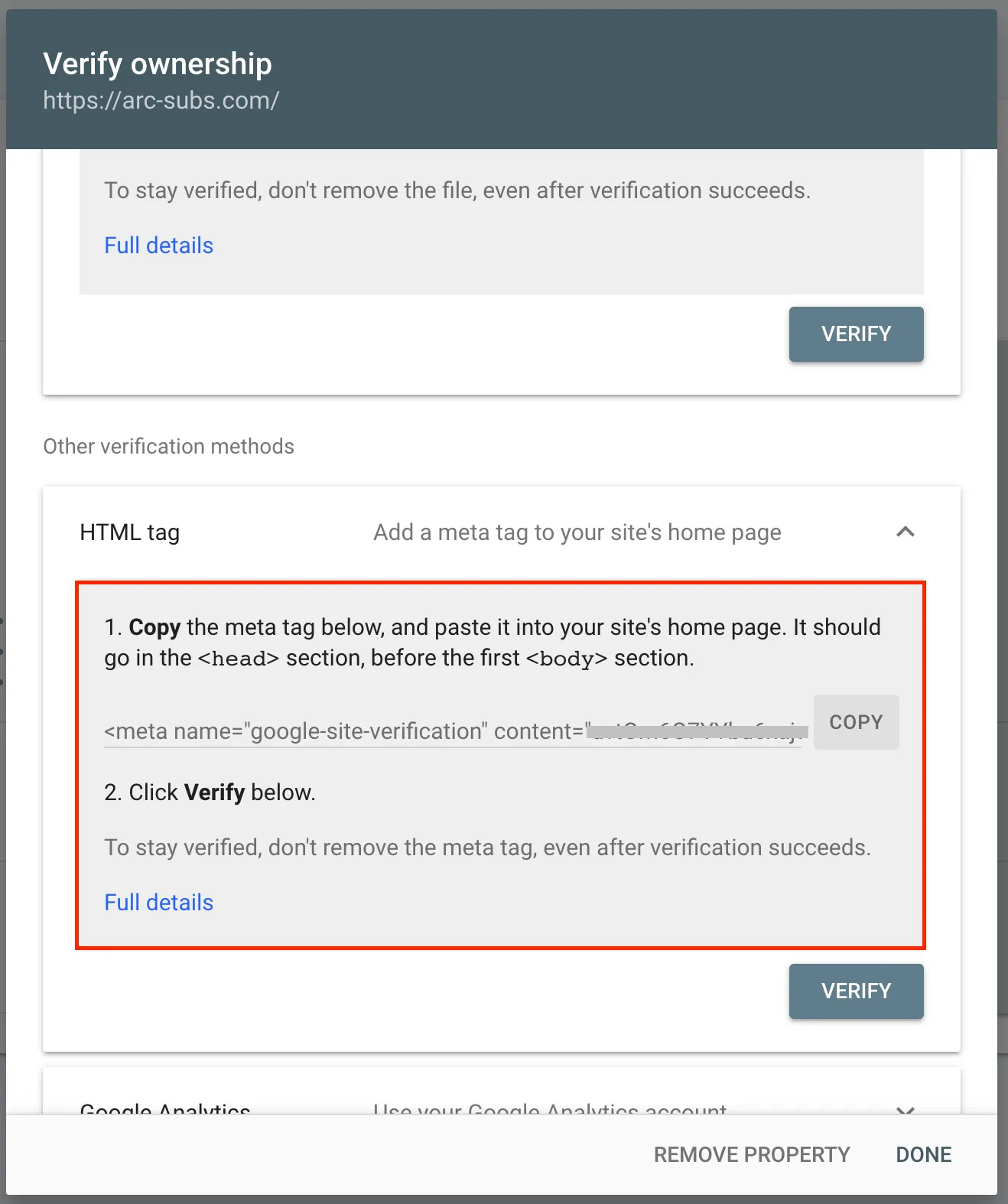
You need to verify your site and add a logo before doing anything else.
Enter your website URL and press Continue.
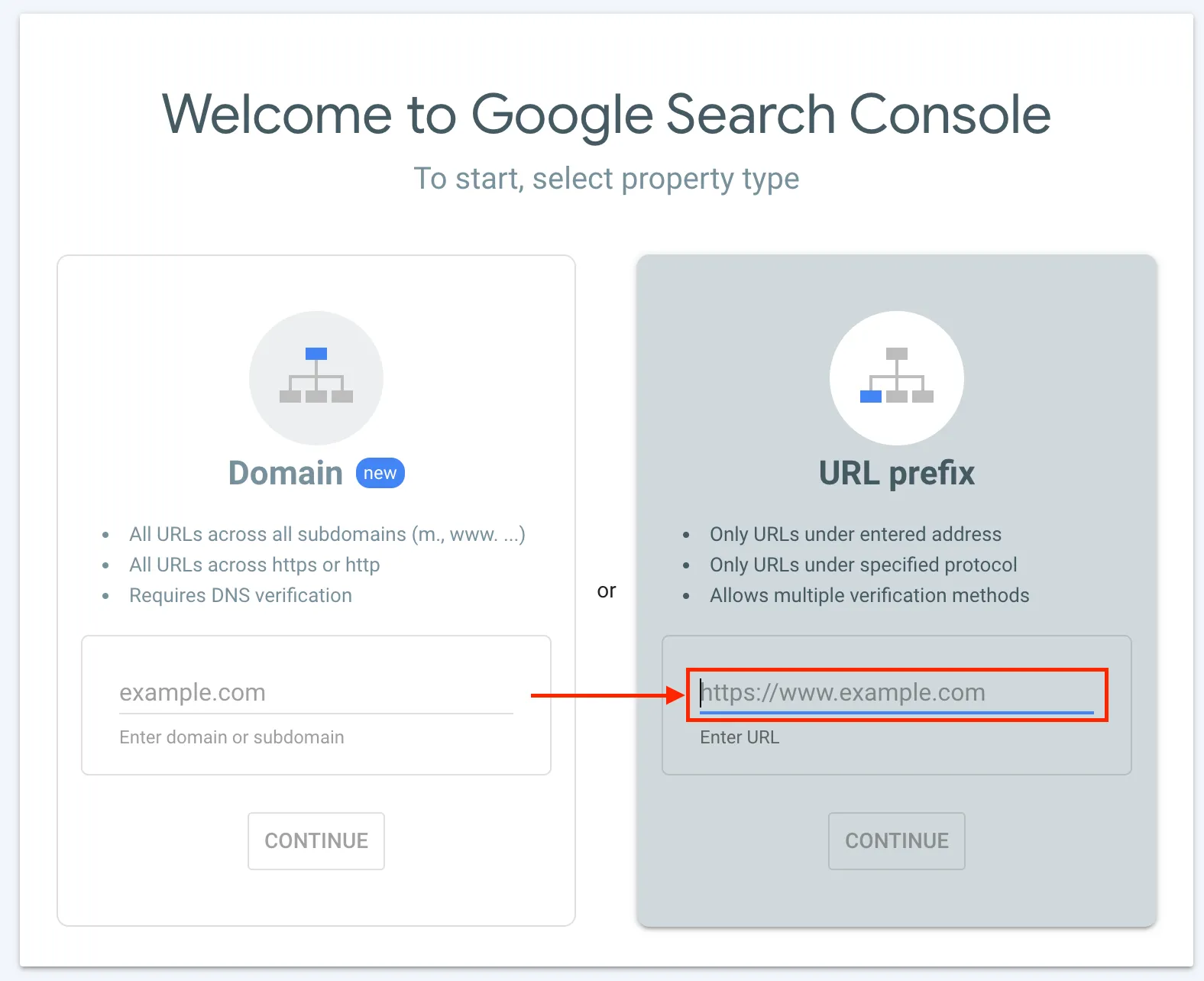
There are multiple ways to validate your publication. The easiest is to use the meta tag, but any method should work.
Configure publication settings
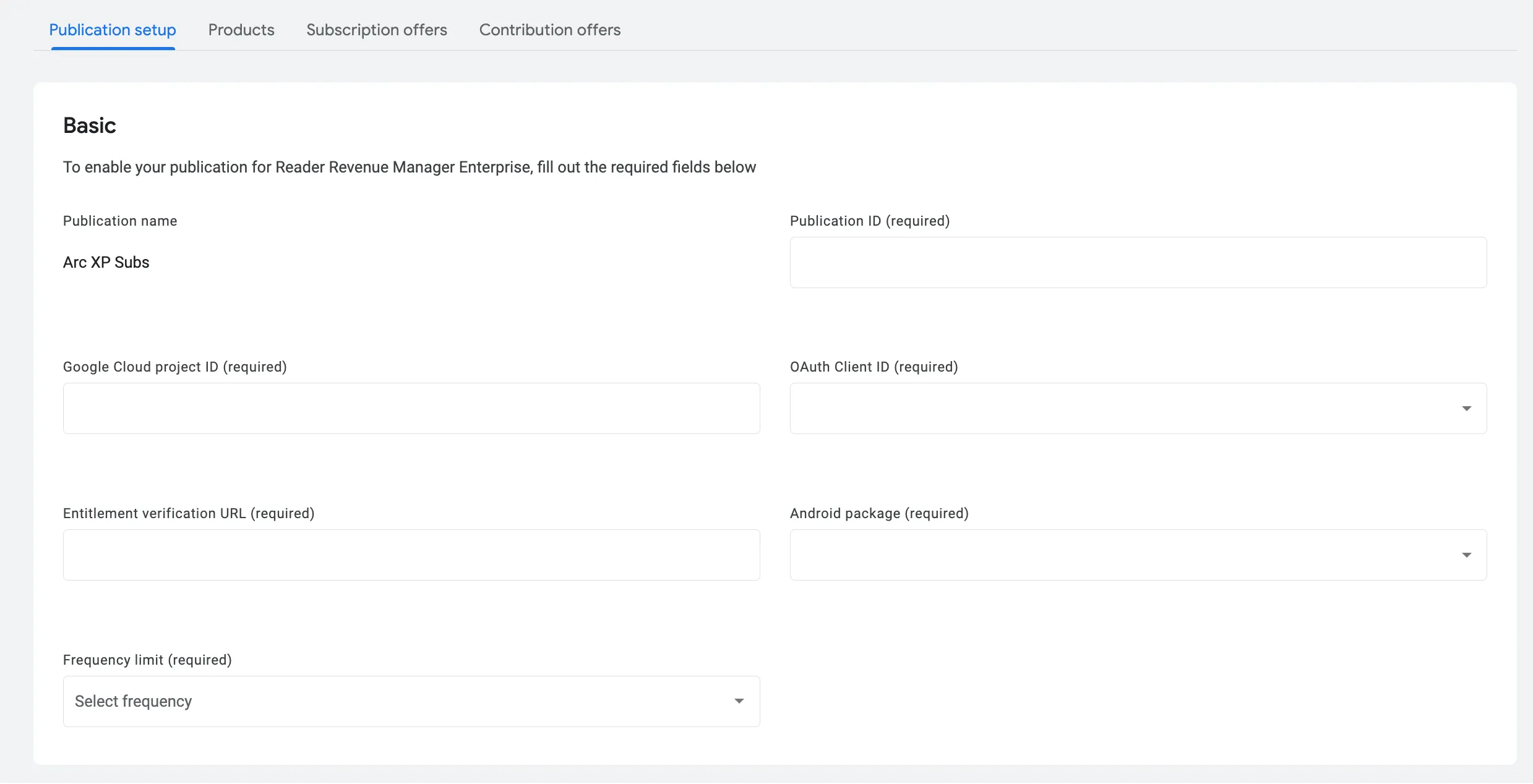
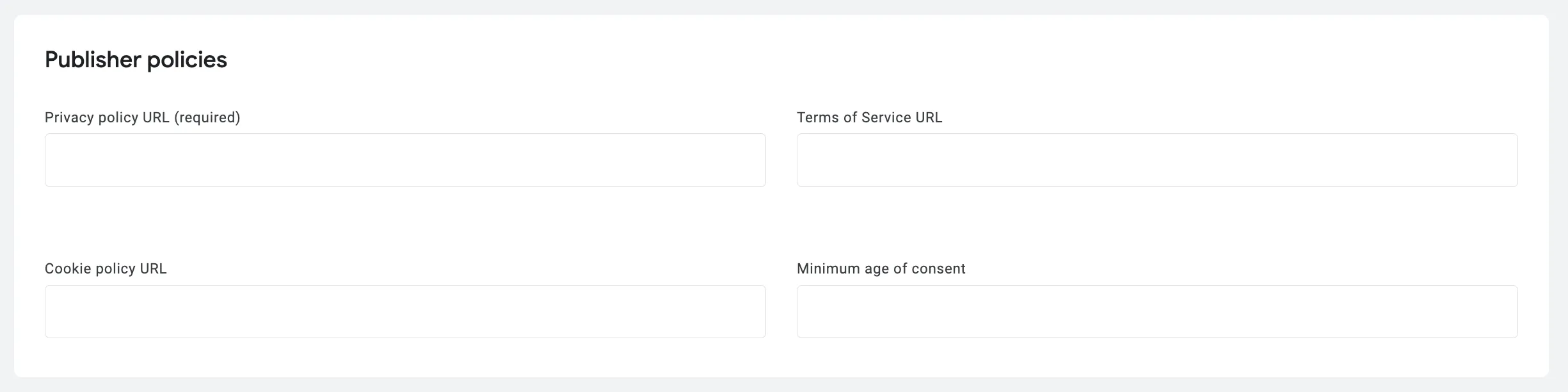
Once you’ve verified, return to Reader Revenue Manager on the Publisher Center dashboard and fill out your site’s information:
- Google Cloud project ID: the same project ID you use for Sign In With Google on your site
- OAuth Client ID: the same OAuth Client ID you use for Sign In With Google on your site
- Entitlements verification URL:
{apiOrigin}/sales/public/v1/swg/entitlements - Android Package: select your package in the dropdown
- Frequency limit: your limit
- Privacy policy URL: from your website
- Terms of Service URL: from your website
- Cookie policy: from your website
- Minimum age of consent: your age requirement
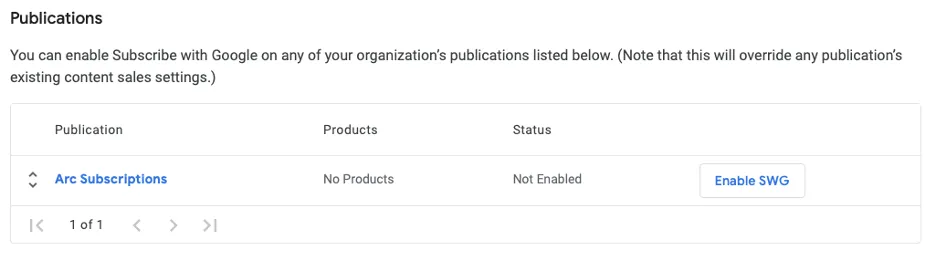
Enable Reader Revenue Manager in Publisher Center.
Link Play Console products to the publication
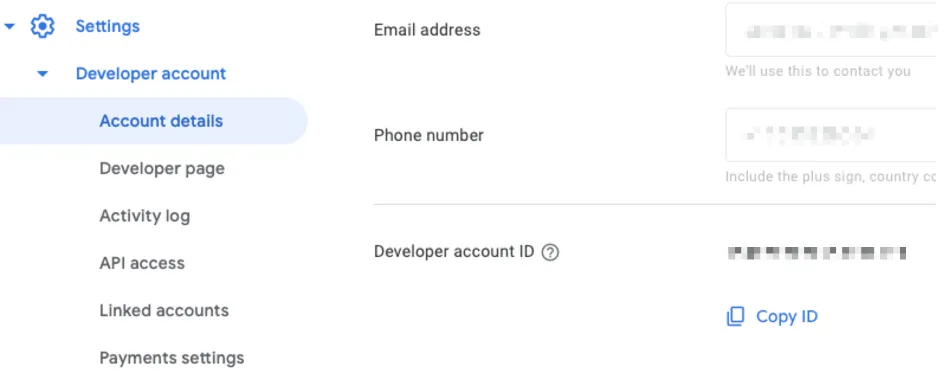
Locate the developer account ID in Play Console for linking your published app to RRM.
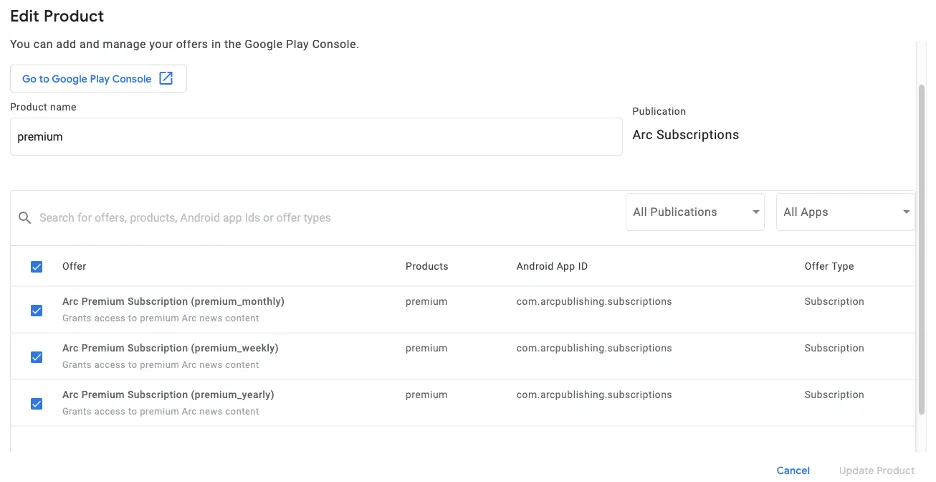
Add product(s) to the publication.
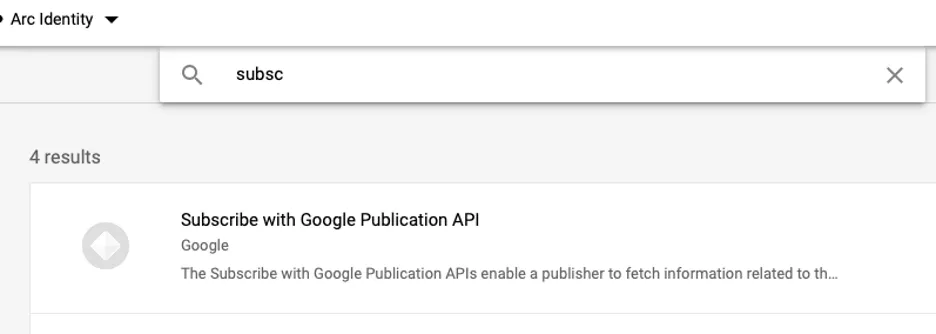
Enable the Reader Revenue Manager Publication API
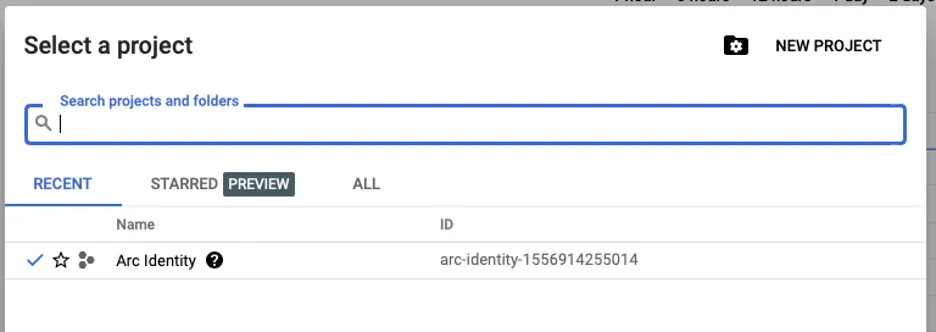
Enable the Reader Revenue Manager Publication API in Google Developers Console.
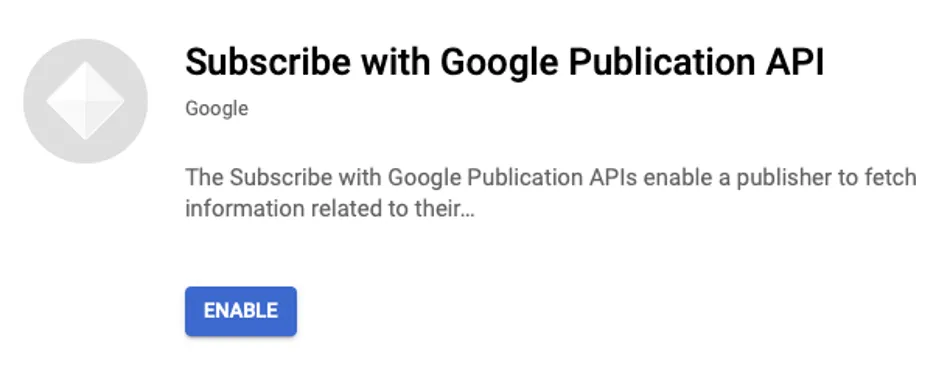
After enabling the API, provide your project ID to your Google contact.
Enable the Reader Revenue Subscription Linking API
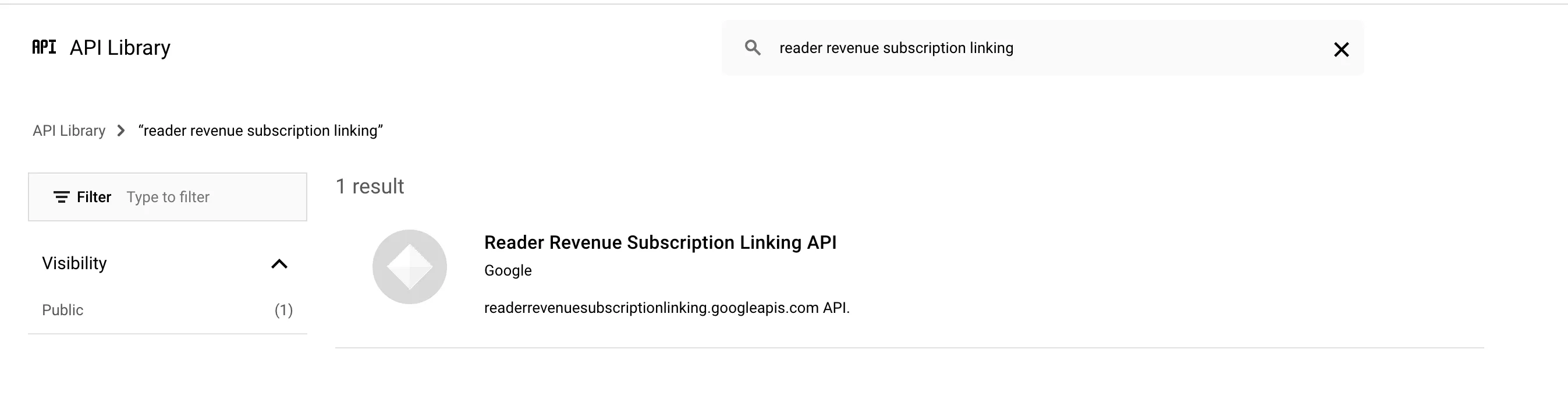
Enable the Reader Revenue Subscription Linking API at https://console.cloud.google.com/apis/api/readerrevenuesubscriptionlinking.googleapis.com, or search for it in Google Cloud Console’s API Library.
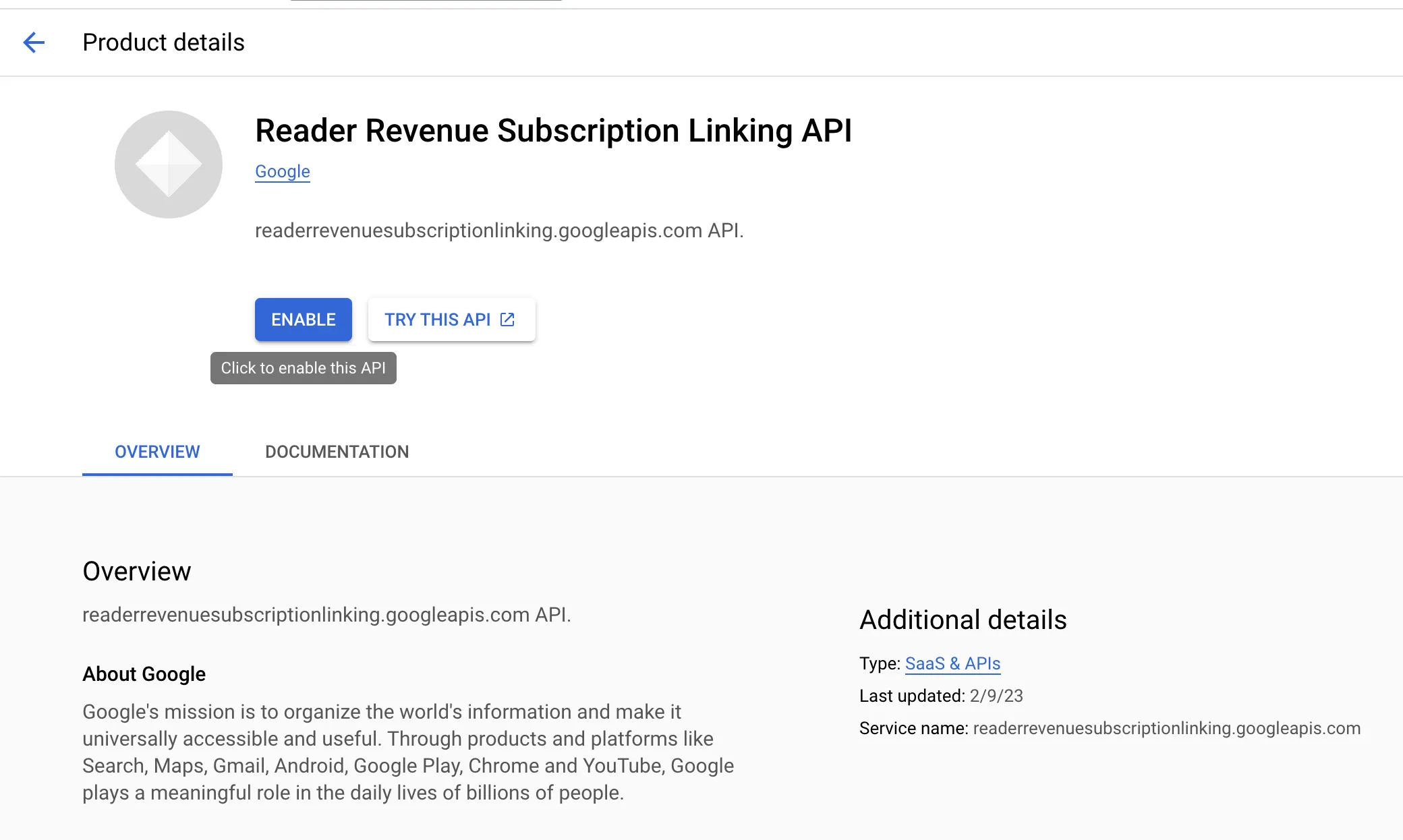
Click Enable to turn on the Reader Revenue Subscription Linking API.
Configure Subscription Linking in Publisher Center
Once you’ve turned on the Reader Revenue Subscription Linking API, set up Subscription Linking in Google Publisher Center.
First, get your GCP Project Number. Navigate to the Google Cloud Console homepage by clicking on the “Google Cloud” logo in the top left, or by visiting https://console.cloud.google.com/welcome?project={your-project-id}. Ensure you’re using the same Google Cloud project ID as the one you set up earlier in Publisher Center, under Publication Settings.
You should see your Google Cloud Project Number:
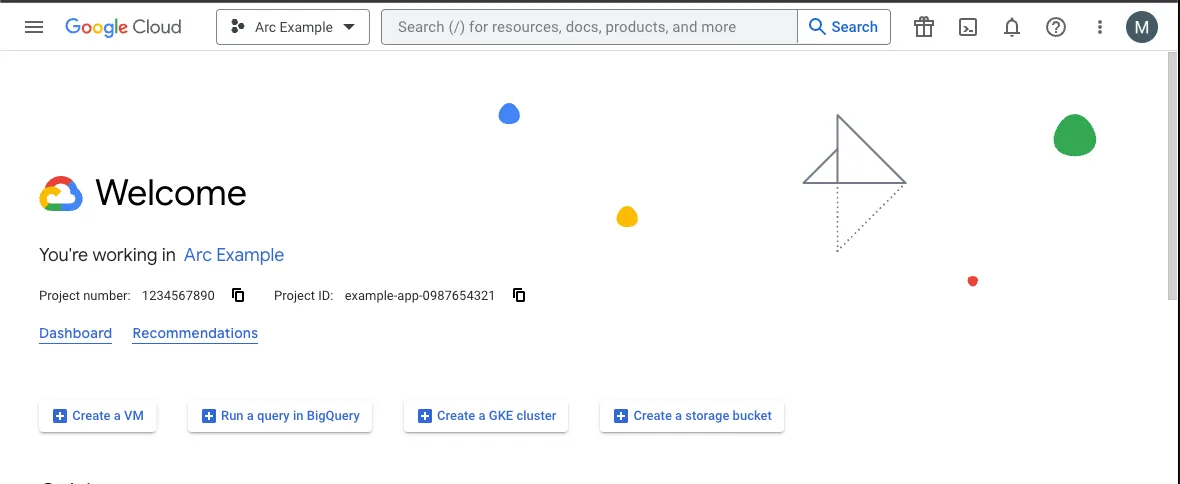
Copy your Project Number, then navigate to the Subscription Linking section for your publication in Google Publisher Center. Under the Google Cloud Project Number input, add your Project Number and save.
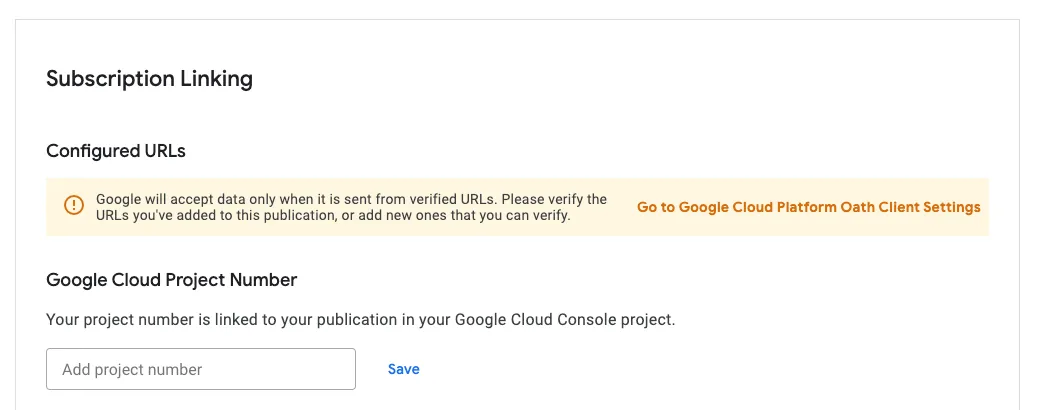
Once completed, verify your Configured URLs and Publication ID are correct.
Configuring Pub/Sub
- Arc pulls the latest SwG subscription status from Google every seven days and terminates the related Arc subscription when it detects that the Google subscription has been terminated.
- Arc uses Google’s Reader Revenue Subscription Linking APIs to synchronize subscriptions that originate from Arc to Google.
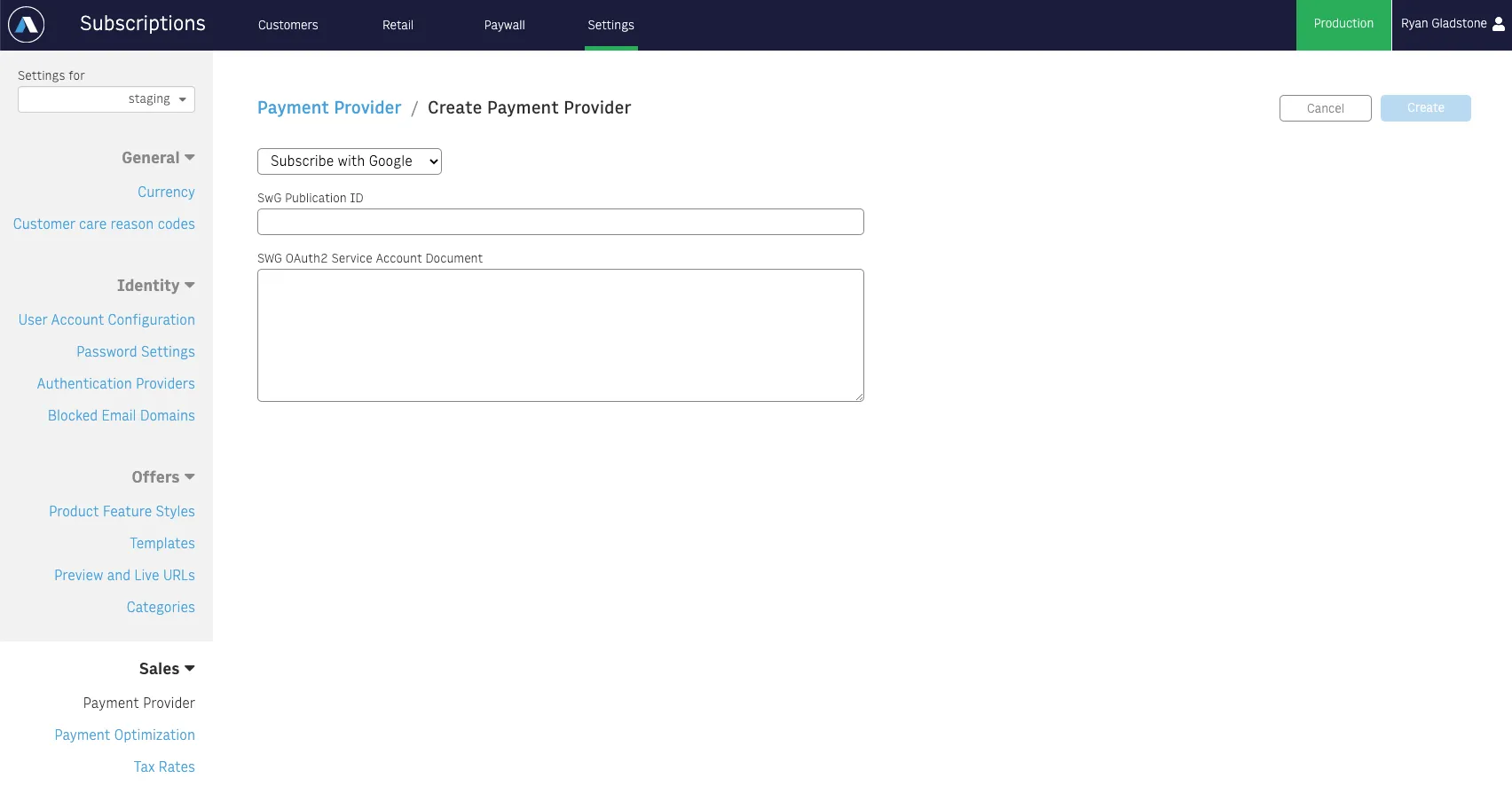
- For subscriptions that originate with Google (e.g., purchased from AMP), Arc can receive Pub/Sub events from Google. Configure your Google account to push to
https://<api domain>/sales/public/v1/swg/pubsub. Arc processesSUBSCRIPTION_PURCHASEDevents only and ignores all others. When a new subscription is purchased through Google, Arc registers a new Google login (if necessary) and links an Arc subscription to that login.
To enable this data synchronization, create a new Subscribe with Google payment provider:
Integrating Reader Revenue Manager in your site
Arc’s ArcSubscribeWithGoogle is an out-of-the-box SDK that integrates RRM with your frontend article/paywall, checkout, and login pages. The SDK provides methods for:
- Linking subscriptions that have been purchased via Arc to a user’s Google account
- Validating & handling entitlements from Google
- Handling purchase responses from Google’s Subscribe with Google checkout flows to sync Subscribe with Google purchases with Arc
You will be responsible for:
- annotating article pages with Subscribe with Google JSON-LD content annotations
- loading & initializing Google’s swg.js on your site
- adding the Subscribe with Google button to your Offers pages
- initializing & using Arc ArcSubscribeWithGoogle SDK methods for login, purchase and subscription linking
Technical Implementation Guide: Javascript SDK
Prerequisites
- P.js is set up on your showcase article pages. See Developer Guide: Setting up a Paywall.
@arc-publishing/sdk-identityinstalled and initialized@arc-publishing/sdk-salesinstalled and initialized- Sign In With Google is implemented
- Articles are annotated with JSON-LD annotations
Installation
Install the Arc Subscribe With Google SDK:
npm i --save @arcxp/sdk-subscribe-with-googleMethods
- ArcSubscribeWithGoogle.options(options)
- used to initialize the ArcSubscribeWithGoogle SDK
- Params:
options.apiOrigin— your API Originoptions.Identity— the Arc Identity SDK, after it’s been fully initializedoptions.Sales— the Arc Sales SDK, fully initializedoptions.debugMode— optional, logs debug info to the console when executing SDK methodsoptions.swg— the main subscriptions object from the swg.js client ready callback.
- ArcSubscribeWithGoogle.getLinkStatus()
- Get whether or not the currently logged in user has linked their subscriptions from Arc to their Google account.
- Returns
{linked: boolean}
- ArcSubscribeWithGoogle.handlePaymentResponse(purchaseData)
- Used to finalize the checkout process when a user purchases a subscription through Subscribe With Google flows. As part of the checkout process, this will either log the user in, or create a new account for the user using the Google account they used to purchase the subscription from Google.
- purchaseData string. Represents the raw “purchaseData” json string that is returned from the paymentResponse in the SwG checkout flow.
- ArcSubscribeWithGoogle.linkSubscription()
- calls swg.js subscriptions.linkSubscription & if the user consents to subscription linking, instructs Arc backend systems to start sending Google information about the user’s subscriptions in Arc.
- ArcSubscribeWithGoogle.lookupSubscriptionToken(subscriptionToken: string)
- Used to determine if a subscriptionToken from Google belongs to a user that already exists in Arc
- Returns
{exists: boolean, profileId: string}
- ArcSubscribeWithGoogle.loginUser(subscriptionToken: string)
- Given a subscriptionToken, this will log the user in, using the Google user that purchased the subscriptionToken
- ArcSubscribeWithGoogle.createAccount(subscriptionToken: string)
- Given a subscriptionToken, this will create a new user, using the Google user that purchased the subscriptionToken
Page Setup
Google’s swg.js should be added to the following pages:
- Article pages
- Any page where the user can log in, if you’d like to check their Google entitlements & link entitlements on login
- Purchase and checkout pages, if you’d like the user to be able to purchase subscriptions through Google on your site
Google recommends swg.js be included in auto-initialization mode on article pages, & manual initialization on your login, offer & checkout pages. Note: if you are also using Google Extended Access on your articles, you must include swg.js in manual initialization mode. Once your page is set up with swg.js, initialize the @arcxp/sdk-subscribe-with-google SDK:
import Identity from '@arc-publishing/sdk-identity';import Sales from '@arc-publishing/sdk-sales';import ArcSubscribeWithGoogle from '@arcxp/sdk-subscribe-with-google';
Identity.options({  apiOrigin: 'your-api-origin'});
Sales.options({  Identity: Identity,  apiOrigin: 'your-api-origin'});
(self.SWG = self.SWG || []).push((subscriptions) => {  ArcSubscribeWithGoogle.options({    Identity: Identity,    Sales: Sales,    apiOrigin: 'your-api-origin',    swg: subscriptions  });});
Linking Subscriptions
Once you’ve installed the @arcxp/sdk-subscribe-with-google SDK and included swg.js on your site, you can link user accounts.
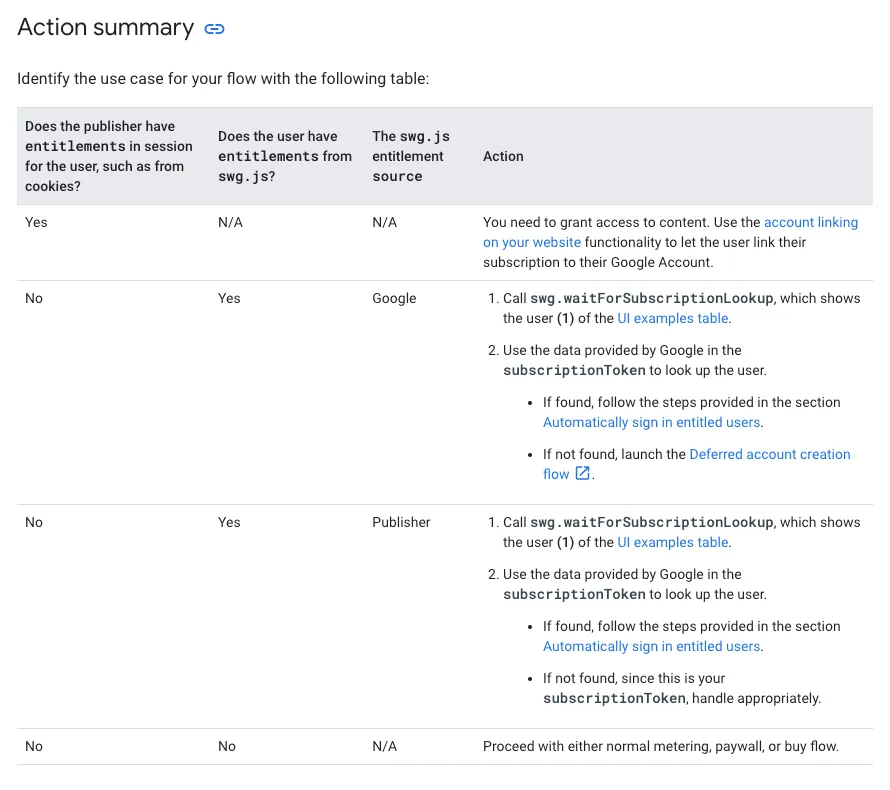
Checking Arc Entitlements & Linking Subscriptions If a user has a publisher subscription via Arc, and can ask the user if they’d like to link their subscription to Google so that the user can enjoy their subscription on Google surfaces. The following function checks if the user is logged in, has active subscriptions that originate in Arc & should link their subscription to Google.
export const linkSubscriptionIfEligible = async () => {  const isLoggedIn = await Identity.isLoggedIn();

  if (!isLoggedIn) {    console.log('not logged in, no need to link');    return;  }

  const linkStatus = await ArcSubscribeWithGoogle.getLinkStatus();  const activeSubs = await Sales.getAllActiveSubscriptions();
  if (!linkStatus?.linked && activeSubs.length) {    return await ArcSubscribeWithGoogle.linkSubscription();  }};
This will send information about the user to Google’s Reader Revenue Management API & Arc will synchronize any publisher subscriptions originating from Arc with Google. You are free to choose when a user is prompted to link their subscription. Common cases include when the user logs in and when a user purchases a subscription via Arc.
Checking Subscribe With Google Entitlements If a user has an active & logged in Google session in their browser, Google’s swg.js will return any entitlements the user has through Subscribe with Google. If we receive any Google entitlements, we need to handle them appropriately, so entitled users can be registered or logged in & access their content. See SwG Entitlements Flow.
The following handleEntitlements function takes entitlements from swg.js and will either log the user in or initiate the deferred account creation flow to register the user in Arc Identity.
export const handleEntitlements = async (swgEntitlements) => {  const isLoggedIn = await Identity.isLoggedIn();  if (!isLoggedIn && swgEntitlements?.enablesThis()) {    const swgEntitlement = (swgEntitlements?.entitlements ?? []).find(entitlement => entitlement.source === 'google');    if (swgEntitlement) {      const account = await ArcSubscribeWithGoogle.swg.waitForSubscriptionLookup(ArcSubscribeWithGoogle.lookupSubscriptionToken(swgEntitlement.subscriptionToken));      if (account.exists) {        // auto-login        const response = await ArcSubscribeWithGoogle.swg.showLoginNotification();
        // show login consent prompt        // const response = await ArcSubscribeWithGoogle.swg.showLoginPrompt();
        const login = await ArcSubscribeWithGoogle.loginUser(swgEntitlement.subscriptionToken);        setIsPaywalled(false);      } else {        // deferred account creation        const response = await ArcSubscribeWithGoogle.swg.completeDeferredAccountCreation({entitlements: swgEntitlements, consent: true});        await ArcSubscribeWithGoogle.createAccount(swgEntitlement.subscriptionToken);        setIsPaywalled(false);        await response.complete();      }      swgEntitlements.ack();      return;    }  }};

// you can then use the function as follows. Be sure the Identity, Sales & ArcSubscribeWithGoogle SDKs are initialized.

(self.SWG = self.SWG || []).push(subscriptions => {  subscriptions.setOnEntitlementsResponse(entitlementsPromise => {    entitlementsPromise.then(entitlements => {      handleEntitlements(entitlements);    });  });});
Here is an example of how you might handle entitlements when a user is paywalled, but has entitlements in Subscribe With Google. If you’ve already set up the entitlements handler in the subscriptions.setOnEntitlementsResponse callback as shown above, you should not need to do this again in your paywall logic. However, you may do so, if you want the auto login/account creation flows to trigger only after the user depletes their meter and sees a paywall.
import { useEffect, useState } from 'react';import Identity from '@arc-publishing/sdk-identity';import Sales from '@arc-publishing/sdk-sales';import ArcSubscribeWithGoogle from '@arcxp/sdk-subscribe-with-google';
const Article = () => {  const [ isPaywalled, setIsPaywalled ] = useState(false);  const [ isInitialized, setIsInitialized ] = useState(false);
  useEffect(() => {    Identity.options({      apiOrigin: 'your-api-origin'    });    Sales.options({      Identity: Identity,      apiOrigin: 'your-api-origin'    });    (self.SWG = self.SWG || []).push(subscriptions => {      ArcSubscribeWithGoogle.options({        Identity: Identity,        Sales: Sales,        apiOrigin: 'your-api-origin',        swg: subscriptions      });      setIsInitialized(true);    });  }, []);
  useEffect(() => {    const runPaywall = async () => {      window.ArcP.run({        paywallFunction: async (campaign) => {          setIsPaywalled(true);          const isLoggedIn = await Identity.isLoggedIn();          const swgEntitlements = await ArcSubscribeWithGoogle.swg.getEntitlements();          if (!isLoggedIn && swgEntitlements?.enablesThis()) {            const swgEntitlement = (swgEntitlements?.entitlements ?? []).find(entitlement => entitlement.source === 'google');            if (swgEntitlement) {              await ArcSubscribeWithGoogle.swg.waitForSubscriptionLookup(ArcSubscribeWithGoogle.lookupSubscriptionToken(swgEntitlement.subscriptionToken))                .then(async (account) => {                  if (account.exists) {                    // auto-login                    ArcSubscribeWithGoogle.swg.showLoginNotification().then(async (response) => {                      const login = await ArcSubscribeWithGoogle.loginUser(swgEntitlement.subscriptionToken);                      setIsPaywalled(false);                    });                  } else {                    // deferred account creation                    const response = await ArcSubscribeWithGoogle.swg.completeDeferredAccountCreation({entitlements: swgEntitlements, consent: true});                    const account = await ArcSubscribeWithGoogle.createAccount(swgEntitlement.subscriptionToken);                    setIsPaywalled(false);                    await response.complete();                  }                });              swgEntitlements.ack();            }            return;          }        }      });    };    if (isInitialized) {      runPaywall();    }  }, [isInitialized]);
  if (isPaywalled) {    return <div>Paywall!!</div>;  }  return <div>{...your article page}</div>;};
export default Article;
Purchasing SwG Subscriptions on Web We need to handle similar linking scenarios for when the user purchases a subscription via Subscribe With Google checkout on your site.
import { useEffect, useState, useRef } from 'react';import Identity from '@arc-publishing/sdk-identity';import Sales from '@arc-publishing/sdk-sales';import ArcSubscribeWithGoogle from '@arcxp/sdk-subscribe-with-google';
const SwgOffer = () => {  const [ isInitialized, setIsInitialized ] = useState();  const swgOfferButton = useRef();
  useEffect(() => {    Identity.options({      apiOrigin: 'your-api-origin'    });
    Sales.options({      Identity: Identity,      apiOrigin: 'your-api-origin'    });
    (self.SWG = self.SWG || []).push(subscriptions => {      ArcSubscribeWithGoogle.options({        Identity: Identity,        Sales: Sales,        apiOrigin: 'your-api-origin',        swg: subscriptions      });      setIsInitialized(true);    });  }, []);
  useEffect(() => {    if (isInitialized) {      // open Subscribe with Google purchase modal      // ArcSubscribeWithGoogle.swg.subscribe('premium');
      // open Subscribe with Google offer carousel      // ArcSubscribeWithGoogle.swg.showOffers({skus: ['basic', 'premium']})
      // attach Subscribe with Google button      ArcSubscribeWithGoogle.swg.attachSmartButton(        swgOfferButton.current,        function() {          ArcSubscribeWithGoogle.swg.subscribe('premium');        }      );
      // handle "Already subscribed?" user click event      ArcSubscribeWithGoogle.swg.setOnLoginRequest(() => {        // redirect the user to your login page        window.location.href = 'https://your-login-page.com';      });
      // Set purchase event handler      ArcSubscribeWithGoogle.swg.setOnPaymentResponse((paymentResponse) => {        paymentResponse.then(async (response) => {          try {            await ArcSubscribeWithGoogle.handlePaymentResponse(response.purchaseData.raw);            await response.complete();            window.location.href = 'https://your-order-success-page.com';          } catch (e) {            console.error('Error syncing Arc purchase to Google', e);          }        });      });    }  }, [isInitialized]);
  return <div ref={swgOfferButton} />};
export default SwgOffer;
Subscribe with Google and AMP
a. AMP Paywall with Subscribe with Google
On your AMP article templates, include the following.
In your HTML header:
<script async custom-element="amp-subscriptions-google" src="https://cdn.ampproject.org/v0/amp-subscriptions-google-0.1.js"></script>In the “amp-subscriptions” services config script tag, include the following:
<script> { "services": [ { "type": "iframe", "iframeSrc": "/amp/p.html", // ... the rest of your Arc Subscriptions AMP Paywall config }, { "serviceId": "subscribe.google.com", "baseScore": {your-base-score} } ], "fallbackEntitlement": "{your-fallback-entitlement}" }</script>See AMP Subscriptions for more information about service selection & the optional “baseScore” parameter.
b. Sell subscriptions on AMP
See the amp-subscriptions-google component documentation to see how to sell Subscribe with Google subscriptions on AMP.
c. Subscription Linking on AMP
To enable Subscription Linking with Subscribe with Google on AMP pages, ensure your login pages are configured according to the AMP access instructions.
If you set up your pages to point to your existing login & registration pages, & you’ve followed the steps in this guide, they should already be set up to use the methods from the ArcSubscribeWithGoogle SDK.
Validate your implementation
At this point, your Subscribe with Google integration should be working smoothly and there’s just one final step before going: reviewing your implementation with Google. To gain final approval, you’ll need to submit screen recordings from all relevant workflows, including web and AMP.
Customer Support
Customers who purchased their subscription via Subscribe with Google are available in Arc Subscriptions’ customer service admin, though some features such as issuing a refund are unavailable for Google-managed subscriptions. Google does share the customer’s email address, making it easy to find and assist the customer.
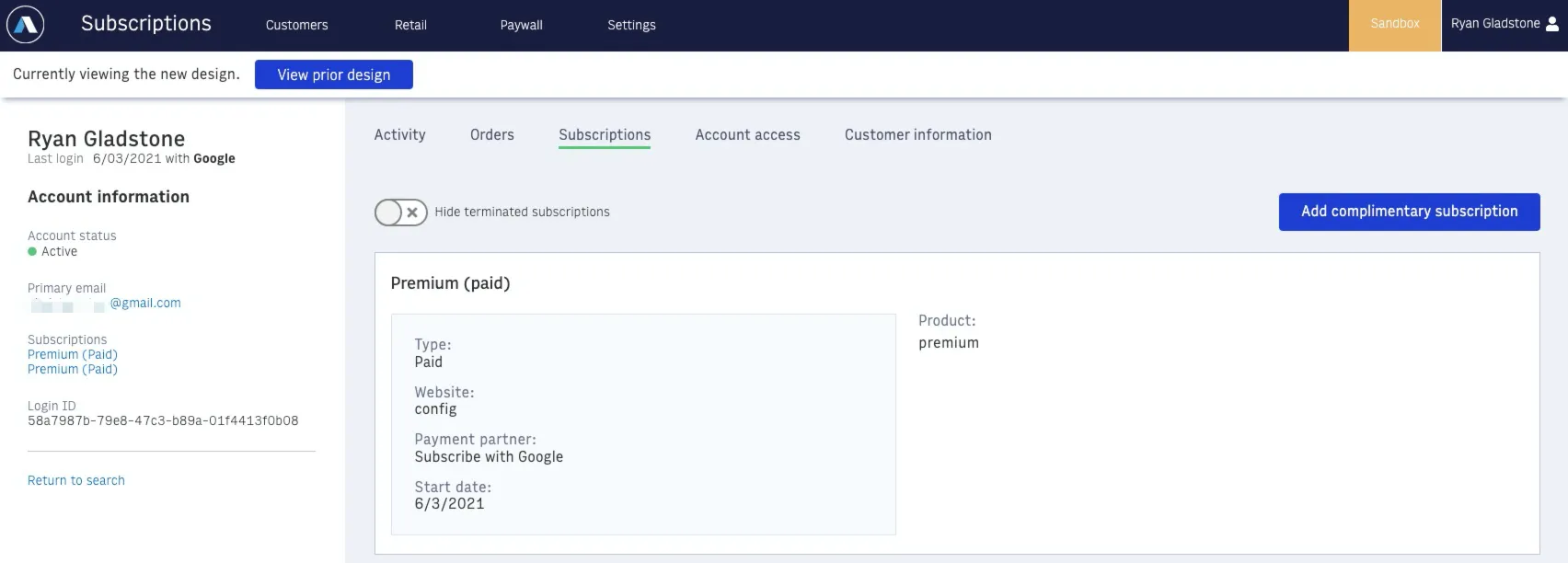
If the customer is interested in managing their subscription — including canceling it — you can direct them to myaccount.google.com.
If the customer service agent has sufficient privileged in their organization’s Google Play account, they can assist the customer in the Google Play Console, including issuing a refund or canceling the subscription.