

Managing custom author fields
List of fields
The list of fields shows all the fields that are created, custom or default fields. It will show the ID of the field, its name and type. It also will show if the field is visible of hidden.
There is a button to create custom fields at the upper-right corner.
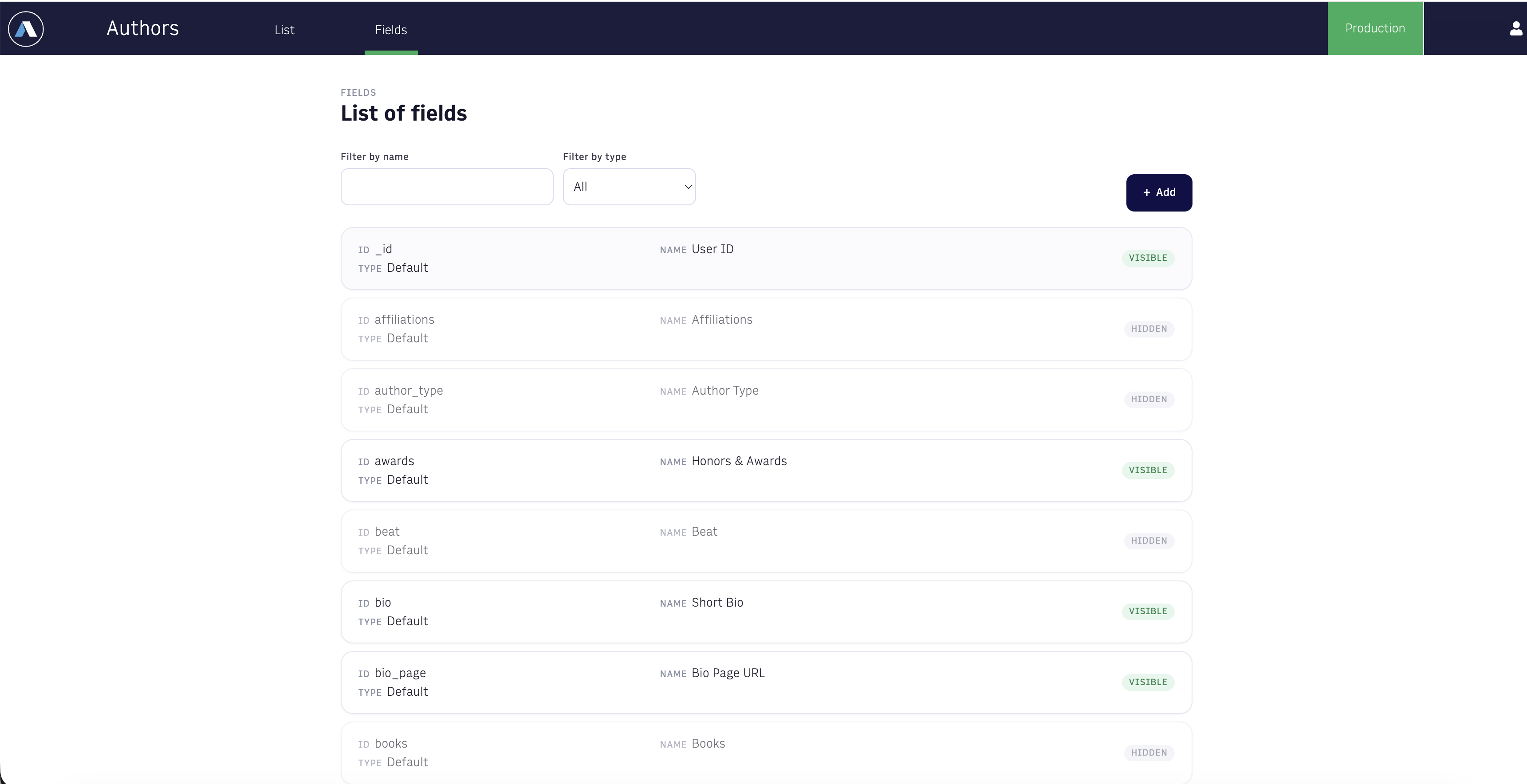
There are two filters at the top of the list.
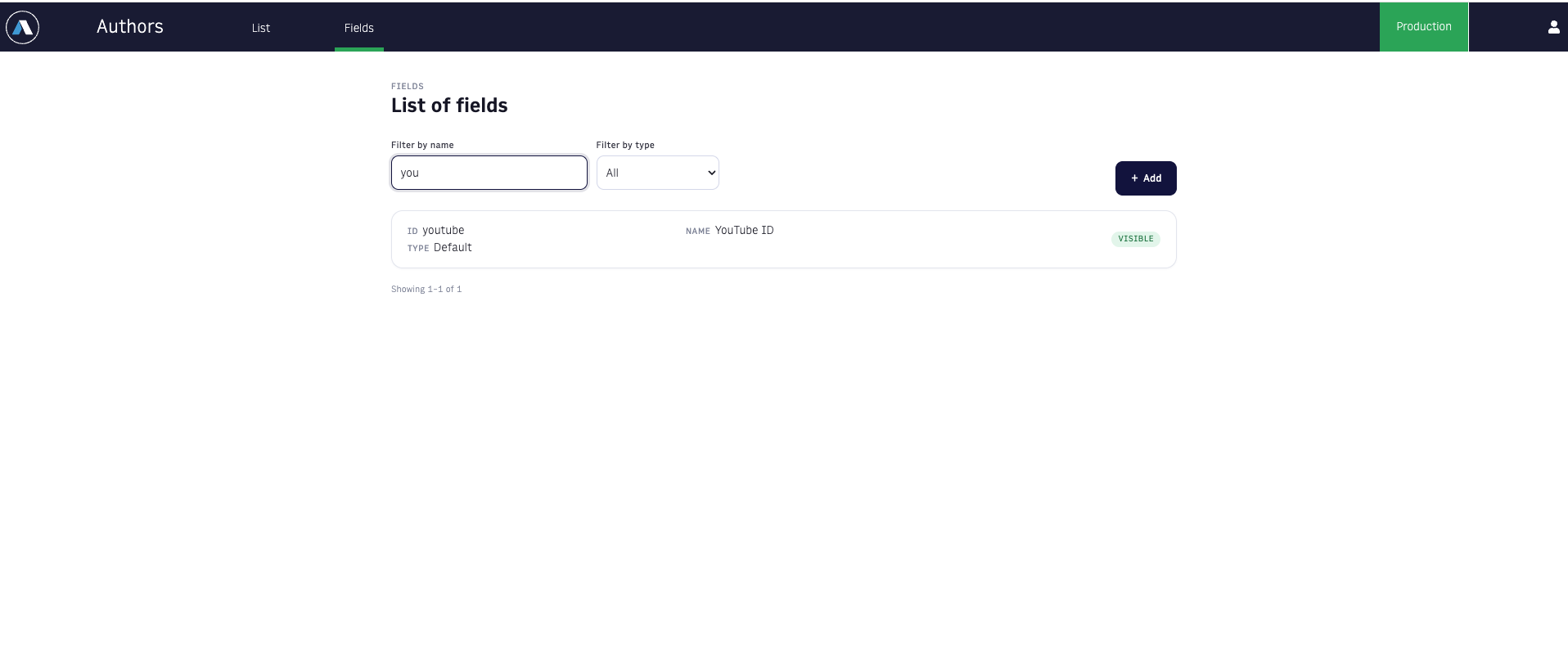
- The first filter is by name, it filters the list by name, just type the name of a field and it will update the list with the results.
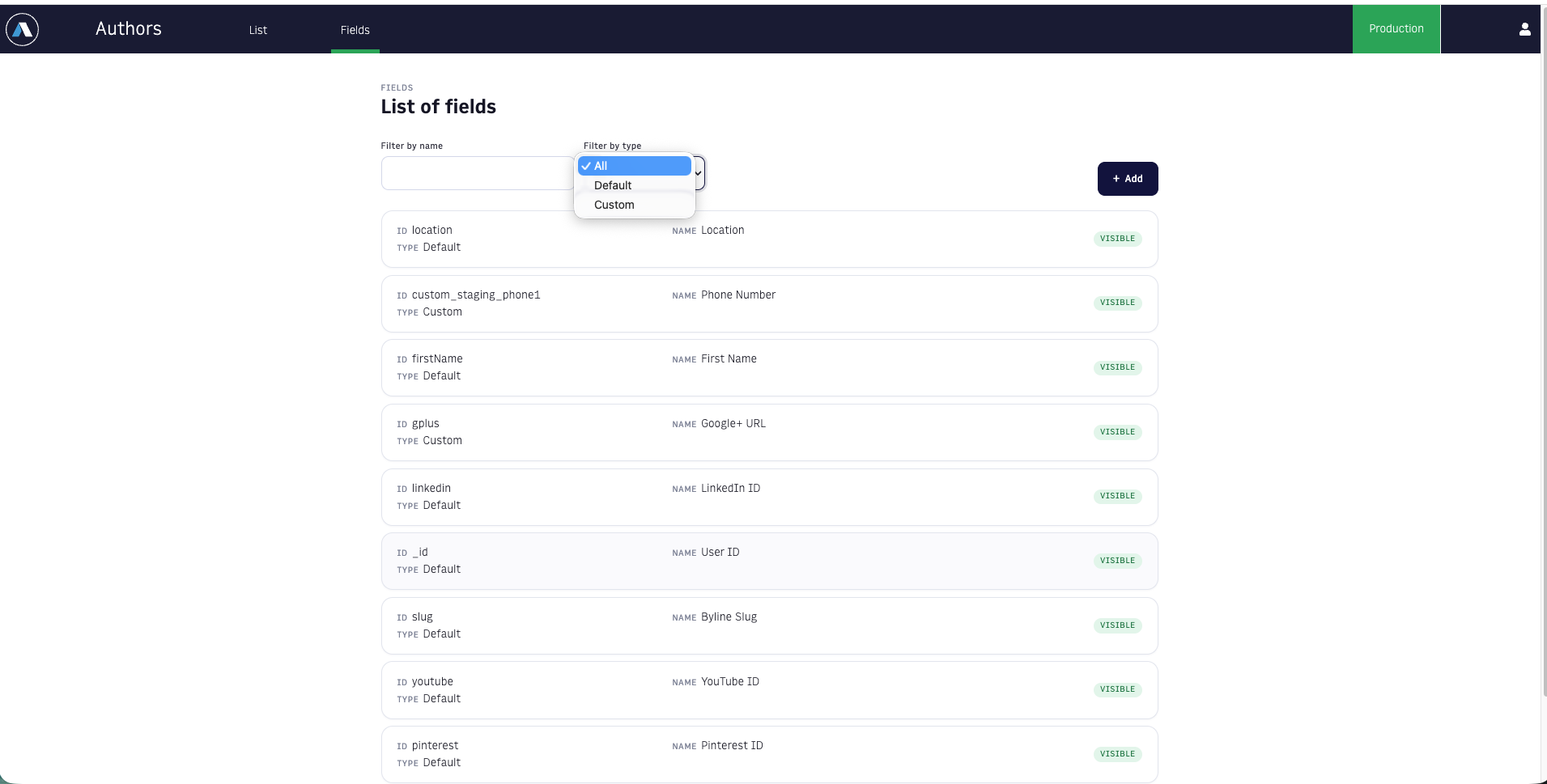
- The second filter is by type, there are 2 types, default and custom, by default it will show all the fields. Depending on the option selected in the dropdown button it will show the fields.
Create Field
In order to create a field, click in the [+Add] button, in the upper-right corner of the fields list. It will redirect to a new view with a form.
It will ask for the id of the field, the name, the type of the field, the placeholder and two options, to make it required or hidden.
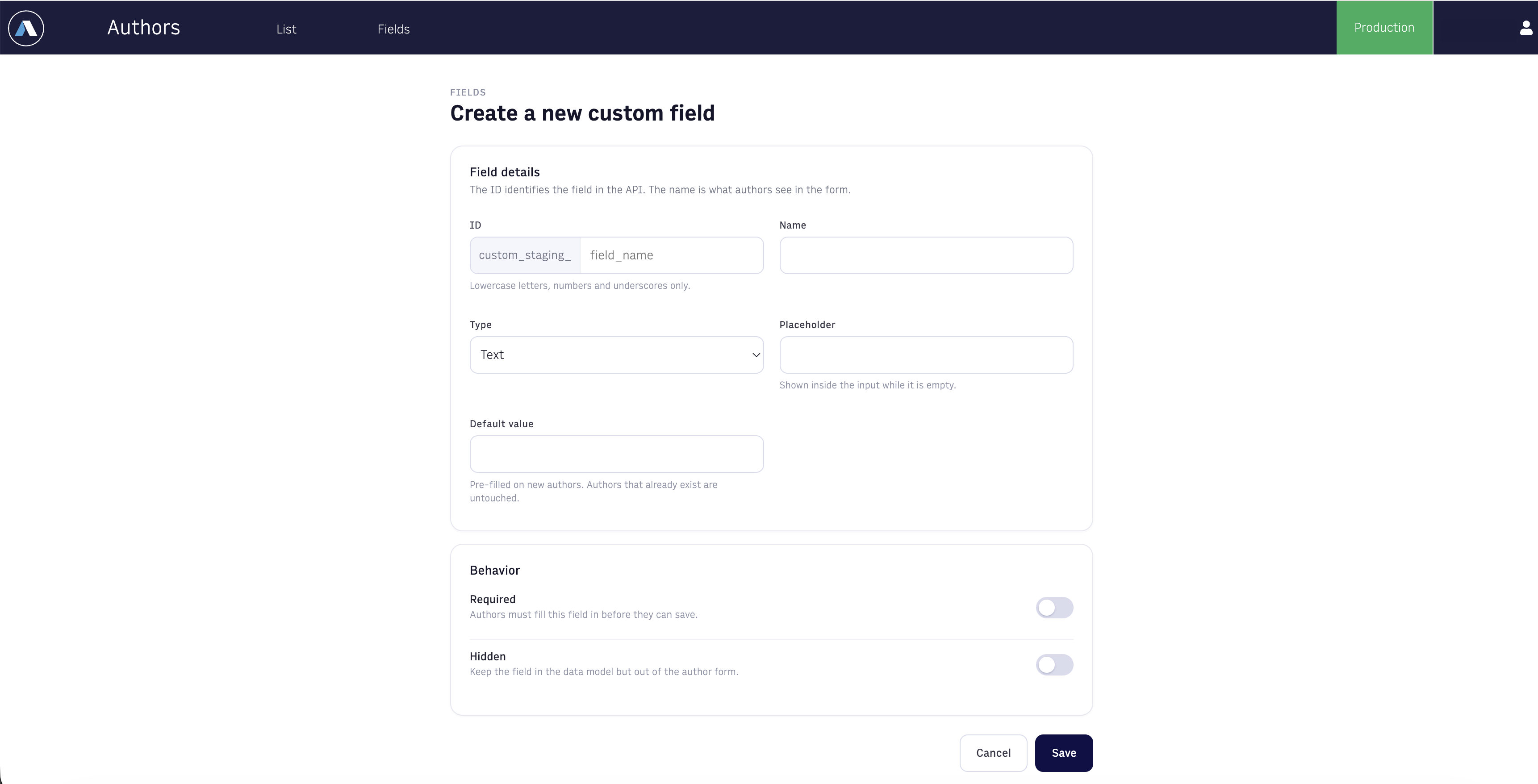
ID
This is the ID of the field, this is how the field will show in the Arc XP Native Specification (ANS) for the author. It always starts with custom_{organization}_.
Name
The name of the field, it is how it will show up in the create/delete author view.
Type
This is the type of field, do not confuse it with the type of field in the list fields view, there are 4 types of fields:
- text
- textarea
- True/False
- dropdown
Placeholder
This is a placeholder for the field.
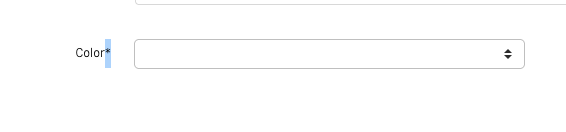
Required
If this option is enabled the filed will be required in the create/update author view.
In order to know if a field is required an asterisk (*) will appear next to the field.
Hidden
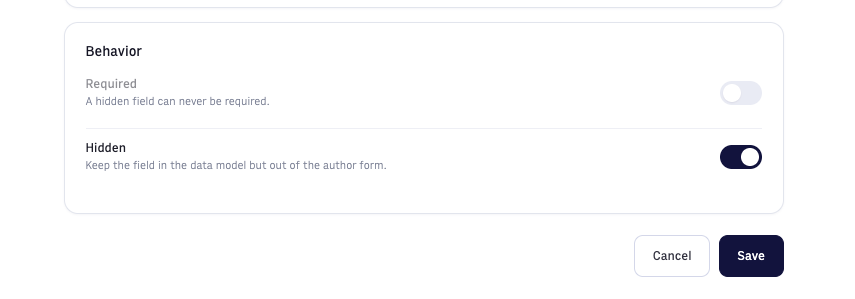
This will hide a field from the create/update author view. If a field is hidden, it cannot be required, the required option disables automatically when the hidden option is selected.
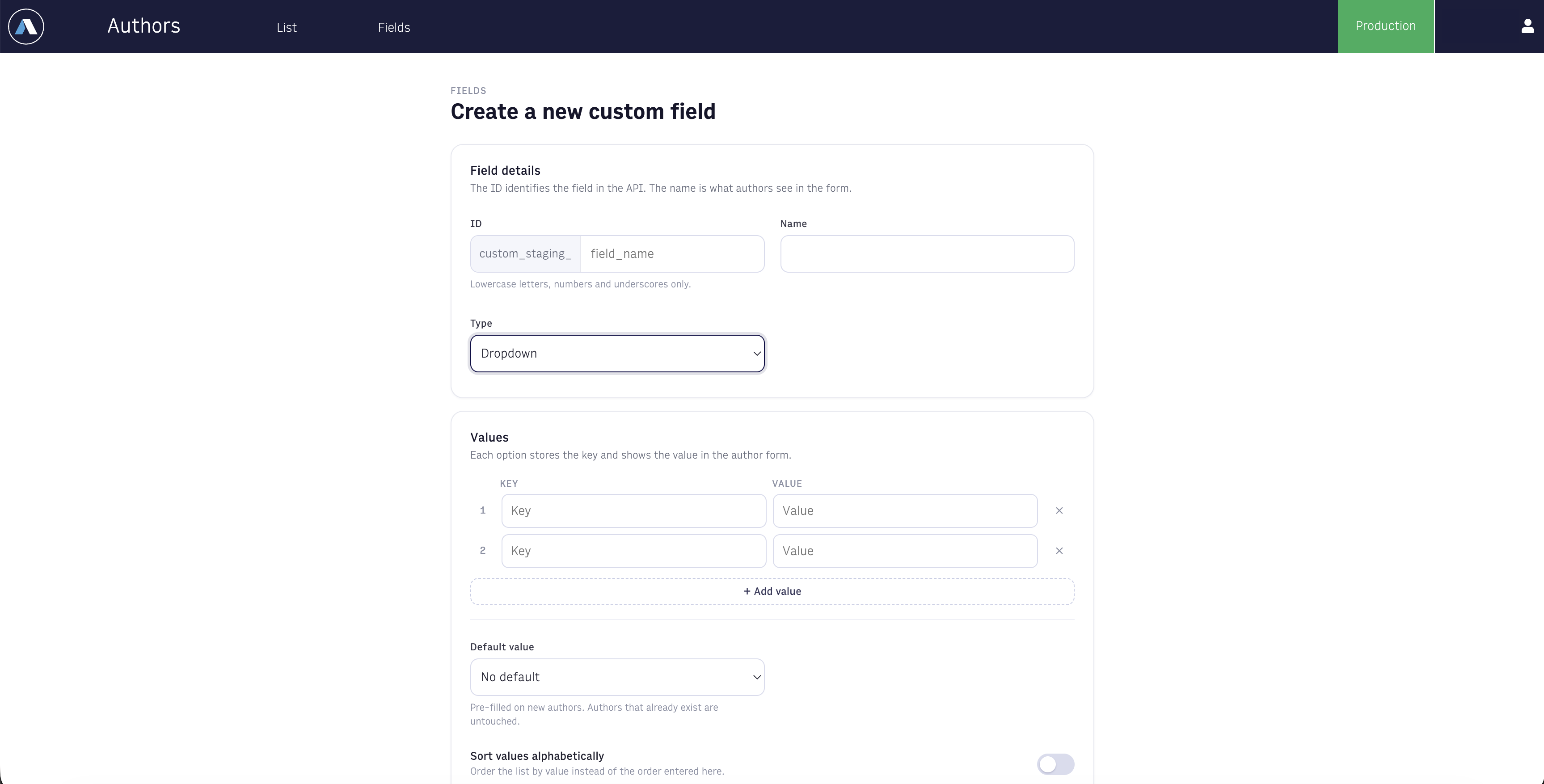
If the type dropdown is selected a new section will appear, with key/value fields to add each option.
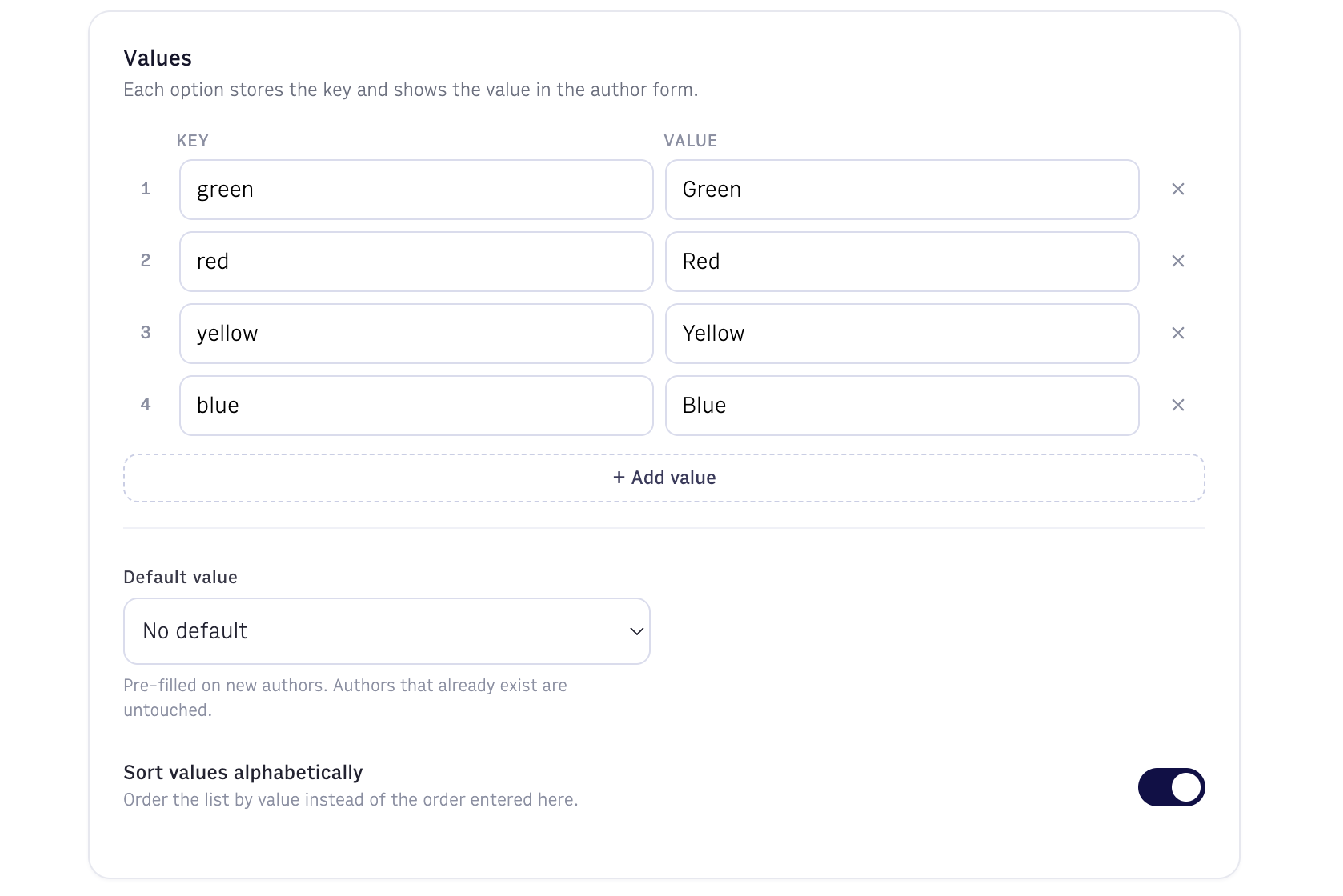
If there are more key/value pair needed just click on the [+Add value] button and a new row will appear.
In order to sort the values alphabetically click in the option at the end of the key/value section and hit save, once the field is saved it will have the data sorted alphabetically.
Edit field
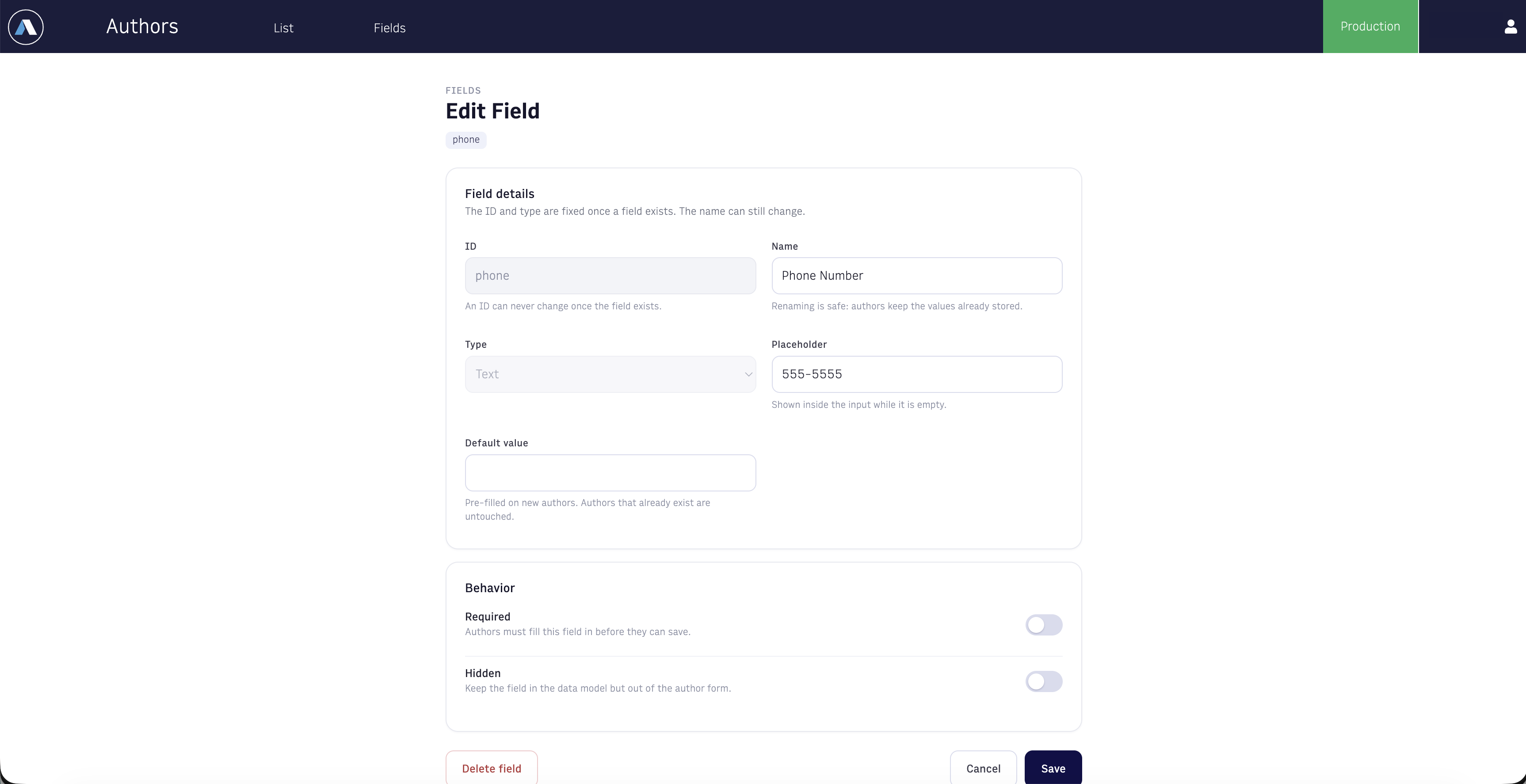
In order to edit a field just click on it and will redirect you to the edit field view.
This view allow you to edit both custom and default fields, the difference is that default fields can only be updated to be required/no required or hidden/visible and they cannot be deleted.
In other hand the custom fields can be deleted and can be updated almost all fields can be changed except for the id and the type.
The _id and type fields are the only fields that cannot be edited.
FAQ
How do I delete a default field?
- It is not possible to delete default fields, only custom fields can be deleted.
What happens with the author data if I delete a custom field?
- The data in the author remains the same even if the field is deleted. Deleting an author doesn’t remove it from the author’s data.
How many customs fields can I create?
- There is no limit for custom fields.