# Arc XP Paywall: Integrating Google Extended Access
Source: https://dev.arcxp.com/subscriptions/developer-docs/arc-xp-paywall-integrating-google-extended-access/
Integrate Google Extended Access with the Arc XP Paywall using the @arcxp/sdk-google-extended-access SDK to unlock select paywalled articles for registered Google News Showcase readers.
> **Note:**
>
> Some links on this page are not publicly accessible and you might see 404 errors. Your Google account must be approved for Showcase to access the linked Google Extended Access documentation.
Google Extended Access is a feature in Google News Showcase that gives readers more opportunities to read select paid content from publisher partners. Extended Access allows readers to register to unlock free access to select paywalled articles. [Google Extended Access](https://developers.google.com/news/subscribe/extended-access/integration-steps/get-started) is not publicly accessible, and you must work with Google to gain access.
You can integrate Google Extended Access with your Arc XP paywall. Arc XP’s integration uses the [client-side web implementation](https://developers.google.com/news/subscribe/extended-access/integration-steps/web-implementation?feed=client-side) (not publicly accessible) of Google Extended Access.
The `@arcxp/sdk-google-extended-access` web SDK’s main job is to provide methods that should be used to initialize the Google Extended Access web SDK (GaaMetering) on your Google News Showcase articles.
## Setup
### Prerequisites
- `p.js` is setup on your showcase article pages. See [Arc XP Subscriptions Paywall](https://docs.arcxp.com/en/products/subscriptions/arc-xp-subscriptions-paywall.html).
- `@arc-publishing/sdk-identity@>=1.71.0-sandbox.0`
- `@arc-publishing/sdk-sales@>=1.71.0-sandbox.0`
- Google Extended Access [Getting Started](https://developers.google.com/news/subscribe/extended-access/integration-steps/get-started) steps are completed, specifically having a Google News publication in Google Publisher Center.
- [Sign-In With Google](https://dev.arcxp.com/subscriptions/identity/configure/third-party-authentication-providers-facebook-google-apple/#google) is implemented.
### Page Setup
Add the following Google client libraries to your showcase articles.
```html
```
Then, follow the [Include Structured Data Markup](https://developers.google.com/news/subscribe/extended-access/integration-steps/web-implementation?feed=client-side#include-structured-data-markup) instructions to annotate your article with the JSON+LD structured data markup.
### Install **`@arcxp/sdk-google-extended-access`**
Run the following command to install the Arc XP Google Extended Access SDK in your project:
Terminal window
```bash
npm i --save @arcxp/sdk-google-extended-access
```
## Integrating Extended Access with Paywall and Arc XP SDKs
Google’s Extended Access decision logic flowchart describes how Extended Access works and delineates the responsibilities of the publisher and Google.
Arc XP Paywall and Arc XP SDK methods take the role of Publisher’s methods below.
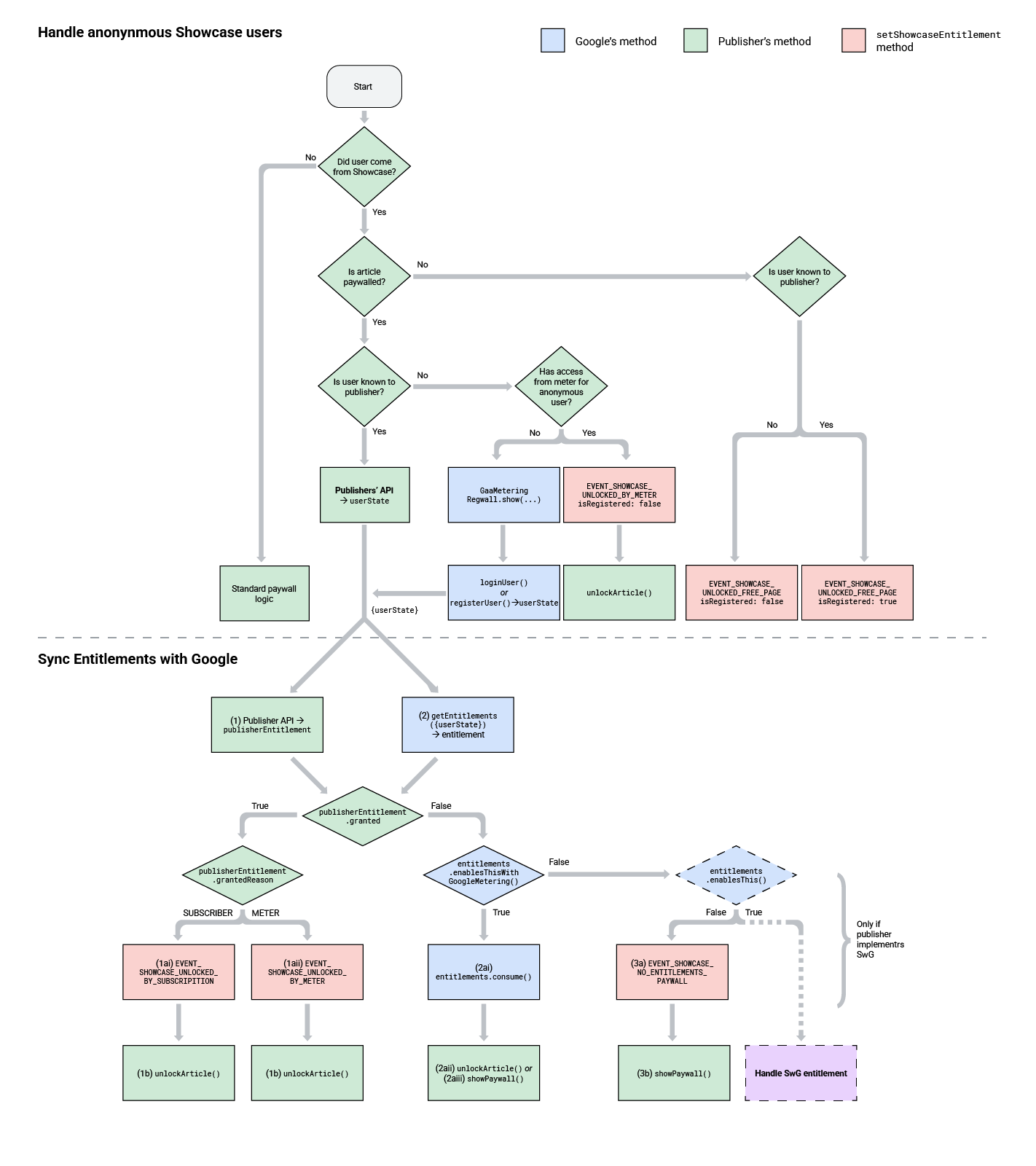
See Google’s [Extended Access decision tree](https://developers.google.com/news/subscribe/extended-access/reference/ea-decision-tree) for the full flowchart.
### Initialize Arc XP Identity SDK, Arc XP Sales SDK, and p.js
If your article pages are already set up to use `@arc-publishing/sdk-identity`, `@arc-publishing/sdk-sales`, and `p.js`, you can skip to the next section, as you should already be performing these steps.
```js
import Identity from '@arc-publishing/sdk-identity';
import Sales from '@arc-publishing/sdk-sales';
const API_ORIGIN = 'your-api-origin-here';
const App = () => {
Identity.options({
apiOrigin: API_ORIGIN,
});
Sales.options({
apiOrigin: API_ORIGIN,
Identity: Identity
});
const showPaywall = () => {
// show paywall
};
const hidePaywall = () => {
// hide paywall
};
const arcPOptions = {
apiOrigin: API_ORIGIN,
paywallFunction: showPaywall,
Identity: Identity,
contentIdentifier: '{articleId}',
contentType: 'article',
section: 'showcase'
};
return window.ArcP.run(arcPOptions).then(() => {
return renderApp();
});
};
```
### Initialize Arc XP Google Extended Access SDK
After you have your Identity and Sales SDKs initialized and `p.js` is set up to run on your showcase article pages, you can initialize the `@arcxp/sdk-google-extended-access` SDK.
Add the import alongside the existing Identity and Sales imports:
```js
import ArcGoogleExtendedAccess from '@arcxp/sdk-google-extended-access';
```
Then, inside `App`, configure the SDK before calling `window.ArcP.run(arcPOptions)`:
```js
ArcGoogleExtendedAccess.options({
ArcP: window.ArcP,
Identity: Identity,
Sales: Sales,
arcPOptions: arcPOptions,
loginUrl: `{your-login-url}`
});
```
### Initialize Google Extended Access
Including Google’s client libraries exposes a `GaaMetering` object on the client window, which handles orchestrating the rest of the Google Extended Access decision flow.
Following Google’s documentation, we need to construct a `userState` object before initializing `GaaMetering`.
See [Initialize the Extended Access Library](https://developers.google.com/news/subscribe/extended-access/integration-steps/web-implementation?feed=client-side#initialize-the-extended-access-library) for more details.
Replace the `window.ArcP.run(arcPOptions).then(...)` call from the previous step with the following, which constructs `userState` and initializes `GaaMetering` once `p.js` has finished running:
```js
return window.ArcP.run(arcPOptions).then(async () => {
const userState = await ArcGoogleExtendedAccess.getUserState();
const identityOptions = await Identity.getOptions();
window.GaaMetering.init({
googleApiClientId: '{your-google-API-client-id}',
userState: userState,
allowedReferrers: ['{your-site-hostname}'],
handleLoginPromise: ArcGoogleExtendedAccess.handleLogin(),
registerUserPromise: ArcGoogleExtendedAccess.registerUser(),
publisherEntitlementPromise: ArcGoogleExtendedAccess.getUserState(),
unlockArticle: hidePaywall,
showPaywall: showPaywall
});
return renderApp();
});
```
Note: The `googleApiClientId` passed to `GaaMetering.init` should be the same one you are using for Sign-In with Google.
Arc Identity stores the Google Client IDs stored for your site and makes them accessible under `Identity.configOptions.googleClientId` as a comma-delimited string. Call `Identity.getOptions()` to get the latest list of Google Client IDs.
## Google Validation
All publishers must submit test cases and videos to Google for final validation and sign-off. Steps to complete this process are available in [Prepare for Launch](https://developers.google.com/news/subscribe/extended-access/support/prepare-for-launch).