# Event Handling and Interaction

Source: https://dev.arcxp.com/pagebuilder-engine/how-to-guides/components-and-content/event-handling-and-interaction/

Modern websites and web applications are expected to be engaging, interactive, and fast. For years, web developers have performed a delicate balancing act: trying to create web pages with rich client-side interactivity while avoiding the inherent complexity that comes with building and maintaining them. React has emerged as a powerful tool to simplify building feature-rich web pages, and we chose to build PageBuilder Engine on top of it for that reason.

As with the rest of this documentation, we expect that you’re familiar with basic React, so we won’t go into detail on React’s syntax or best practices - but it can’t hurt to try out an example!

## Responding to events

There’s nothing special about handling events in PageBuilder Engine - you should just [Use React As Intended](https://reactjs.org/docs/handling-events.html). With that in mind, let’s adapt our `MovieDetail` component so we can prevent readers from seeing spoilers if they don’t want to.

We’ll add a simple feature that toggles the “Plot” to be shown or hidden based on a button click, and default it to hidden so readers don’t see the plot on page load. To do that, we’ll need a couple of things:

- We need some `state` in our component that keeps track of whether or not the plot is currently shown or hidden. We’ll call this boolean `isPlotShown` and default it to `false`.
- We need a method that will toggle the show/hide state of the plot. Let’s call it `togglePlot`.
- We need something the user can interact with (probably a button) to invoke the toggle method.
- We need to conditionally show the plot only if `isPlotShown` is true, and change the text of our button to “Show Plot” or “Hide Plot” depending on what state it’s in.

We’ll tackle these steps one by one, with different examples depending on whether you wrote a class-based or functional `movie-detail` component in [How to create a feature component](https://dev.arcxp.com/pagebuilder-engine/how-to-guides/components-and-content/how-to-create-a-feature-component/).

### Adding some state

With hooks, we’ll first import the `useState` function. Here, `useState` function takes in `false` as a parameter, and returns `isPlotShown` variable and `setPlotShown` function. `isPlotShown` variable will be initialized with what was passed as the parameter - `false` and we will later be able to use `setPlotShown` function to set it to a new state. Read more about the `useState` hook in the official React [Documentation](https://react.dev/reference/react/useState)

```js
import React, { useState } from 'react'

const MovieDetail = (props) => {
  const [isPlotShown, setPlotShown] = useState(false);
```

Step one down!

### Adding a toggle method

Remember the `setPlotShown` function that was returned from `useState` function? We will be using that to change the state of the `isPlotShown` variable with a click of a button:

```js
  ...
  const plotButton = (
    <button onClick={()=>setPlotShown(!isPlotShown)}>
      {isPlotShown ? 'Hide Plot' : 'Show Plot'}
    </button>
  )

  const Plot = 'Lorem ipsum'
  ...
```

 ) const Plot = 'Lorem ipsum' ...">

When the button is clicked, the `setPlotShown` function will set the `isPlotShown` variable to the parameter it was passed to. Here, we are simply having it be set to the opposite of the variable - setting it to `true` if it was `false`, and vice versa.

In both of these incomplete snippets from our method, we’re creating a `const` named `plotButton` that is the button element users will click on. We’re using the `isPlotShown` key to determine if the button should say “Hide Plot” or “Show Plot”. Finally, we’re setting a `Plot` const to the static value `Lorem ipsum` just for ease of use later. We’ll use our `plotButton` in the next step. Only one more to go!

### Displaying the data

Now all that’s left to do is display our `Plot` and `plotButton`:

```js
  ...
  return (
    <div className='movie-detail col-sm-12 col-md-8'>
      <h1>Jurassic Park</h1>
      <p><strong>Director:</strong> Steven Spielberg</p>
      <p><strong>Actors:</strong> Sam Neill, Laura Dern, Jeff Goldblum, Richard Attenborough</p>

      <p><strong>Plot:</strong> {isPlotShown && Plot} {plotButton} </p>
      ...
    </div>
  )
}
```

We’ve just replaced the plot text with the button from above, and rendered it conditionally based on the `isPlotShown` value.

Now if we refresh the page, we should see our “Show Plot” button where the “Lorem ipsum” text was, and be able to toggle the text back and forth by clicking “Show Plot” and “Hide Plot”. Great job!

### The whole thing

We could actually further optimize the functional component by writing the MoviePlot as its own component so that it only re-renders the plot when the button is pressed instead of the whole feature:

```js
import React, { useState } from 'react'

const MoviePlot = (props) => {
  const [isPlotShown, setPlotShown] = useState(false)

  return <>
    {isPlotShown && props.plot}
    <button onClick={() => setPlotShown(!isPlotShown)}>
      {isPlotShown ? 'Hide Plot' : 'Show Plot'}
    </button>
  </>
}

const MovieDetail = (props) =>
  <div className='movie-detail col-sm-12 col-md-8'>
    <h1>Jurassic Park</h1>
    <p><strong>Director:</strong> Steven Spielberg</p>
    <p><strong>Actors:</strong> Sam Neill, Laura Dern, Jeff Goldblum, Richard Attenborough</p>
    <p><strong>Plot:</strong> <MoviePlot plot='Lorem ipsum' /></p>
    <p><strong>Rated:</strong> PG-13</p>
    <p><strong>Writer:</strong> Michael Crichton (novel), Michael Crichton (screenplay), David Koepp (screenplay)</p>
    <p><strong>Year:</strong> 1993</p>
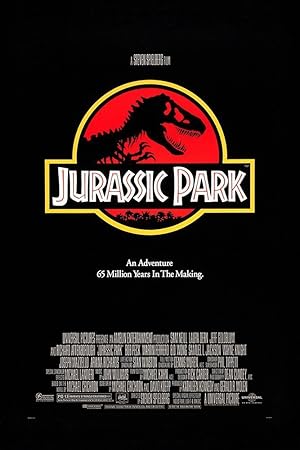
    <img src='https://m.media-amazon.com/images/M/MV5BMjM2MDgxMDg0Nl5BMl5BanBnXkFtZTgwNTM2OTM5NDE@._V1_SX300.jpg' alt={`Poster for Jurassic Park`} />
  </div>

MovieDetail.label = 'Movie Detail'

export default MovieDetail
```

 </>}const MovieDetail = (props) => 

 

# Jurassic Park

 

**Director:** Steven Spielberg

 

**Actors:** Sam Neill, Laura Dern, Jeff Goldblum, Richard Attenborough

 

**Plot:** 

 

**Rated:** PG-13

 

**Writer:** Michael Crichton (novel), Michael Crichton (screenplay), David Koepp (screenplay)

 

**Year:** 1993

 ![{`Poster]('https://m.media-amazon.com/images/M/MV5BMjM2MDgxMDg0Nl5BMl5BanBnXkFtZTgwNTM2OTM5NDE@._V1_SX300.jpg') 

MovieDetail.label = 'Movie Detail'export default MovieDetail">

> **Note:**
> 
> The `<></>` tags are shorthand syntax for React [Fragments](https://reactjs.org/docs/fragments.html)

While this was a simple example of how to add client-side interactivity to a React component in PageBuilder Engine, it should illustrate that there’s nothing different about handling events in standard React vs. PageBuilder Engine.